PandaDoc + HubSpot Proposal Automation Without Custom Code
 By
By TL;DR
You can fully automate PandaDoc proposals from HubSpot deal stages using the native HubSpot integration plus n8n for advanced routing, no custom code required.
On this page
Most RevOps teams I talk to have the same proposal problem: reps manually building docs in Google Slides, copy-pasting pricing from HubSpot, then emailing a PDF and losing all visibility the moment it lands in the buyer’s inbox. The fix is not a six-month dev project. PandaDoc connects to HubSpot natively, and with a handful of workflow steps plus optionally n8n for conditional routing, you can have deal-stage-triggered proposals firing automatically inside a week. This post is the exact recipe I use for this, including where the native integration stops and where you need a middleware layer.
Why Proposal Automation Actually Breaks at the CRM Layer
The proposal problem is almost never a document tool problem. It is a data handoff problem. Your rep closes a discovery call, updates three deal properties in HubSpot, then pivots to a completely separate tool to build the proposal from scratch, re-entering the same data they just logged. That gap is where personalization dies and errors sneak in.
I have watched this play out across a dozen B2B SaaS RevOps engagements at Homegrown Growth Co. The teams spending the most time on proposals are almost always the teams with the weakest CRM hygiene, because nobody has ever forced the data to flow downstream. Connecting PandaDoc to HubSpot makes proposal creation a consequence of good CRM behavior, not a separate manual task. When reps know a polished proposal auto-generates the moment they move a deal to the right stage, they actually keep their deal records current. That behavioral shift alone is worth the setup time.
HubSpot Research on sales automation adoption consistently points to document generation as one of the highest-ROI automation targets, precisely because reps touch it on every single deal.
The Step-by-Step Workflow
Before you start, verify two things. Your HubSpot plan needs to be Starter or above (the native PandaDoc integration requires the HubSpot app marketplace, which is gated). Your PandaDoc plan needs to be Business or higher (the HubSpot integration is not available on Essentials). Line items in HubSpot also need to be set up with a product library if you want pricing to pull automatically.
In HubSpot, go to Settings > Integrations > App Marketplace, search PandaDoc, and click Install. Authenticate with your PandaDoc admin credentials. This creates a PandaDoc widget inside every Deal record and enables bidirectional property sync. You will see a PandaDoc panel appear in the right sidebar of deal records immediately after auth.
Inside PandaDoc, open your proposal template and insert tokens for the fields you want to pull from HubSpot: deal name, contact first name, company name, deal amount, and close date are the baseline. Token syntax uses double brackets in the PandaDoc editor. Map each token to its corresponding HubSpot property in Settings > Integrations > HubSpot > Property Mapping. Do this for every template you plan to use.
In HubSpot Workflows, create a Deal-based workflow. Set the enrollment trigger to 'Deal stage is equal to Proposal Sent' (or whatever stage name you use). Add a zero-minute delay, then add the action 'Create PandaDoc document from template.' Select the template, choose 'Send automatically' if your process allows it, or 'Create as draft' if a rep needs to review first. Map the recipient to the deal's associated contact.
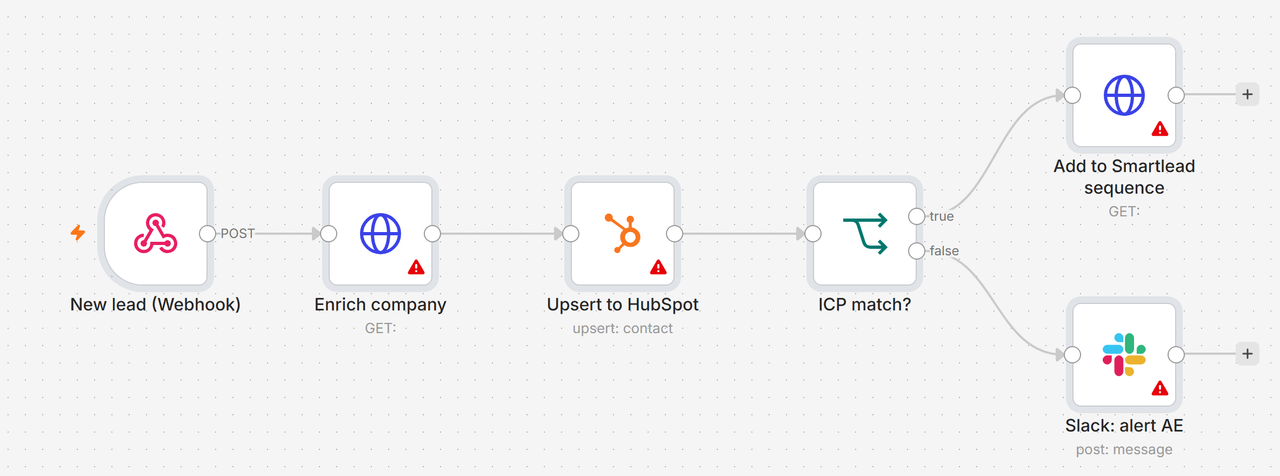
The native HubSpot workflow action supports only a single template. If you have multiple proposal templates (SMB vs. enterprise, product line A vs. B), build an n8n workflow instead. Trigger on a HubSpot deal stage webhook, use an IF node to branch on deal amount or deal type property, then call the PandaDoc API with the correct template ID per branch. The PandaDoc API endpoint is POST /documents and accepts template_uuid, recipients, and tokens as the payload.
PandaDoc webhooks fire on document opened, viewed, signed, and declined events. In n8n, add a Webhook trigger node listening for PandaDoc events, then write the status back to the HubSpot deal using the Update Deal action. Simultaneously push a Slack message to the rep's channel: 'Your proposal for [company] was opened 3 minutes ago.' This closes the visibility gap that emailed PDFs create.
The Gotcha That Kills Most First Attempts
Token mismatches. That is the failure point I see on nearly every first implementation. HubSpot internal property names use snake_case (dealname, amount, closedate) while PandaDoc tokens are case-sensitive and expect exact string matches. Name your token Deal Name with a capital D and a space, but have the integration mapping send dealname, and the token renders blank in the generated document. Every time.
The trap: Teams configure the integration, test on one deal, see it work, then ship it to the whole team. Two weeks later, reps are complaining that proposals show literal bracket text instead of the actual company name. The culprit is almost always a token that worked in the test deal because someone manually filled it inside PandaDoc, but it was never actually mapping from HubSpot at all.
Check every token by creating a test document via the API and inspecting the response JSON for unfilled token fields. Do not rely on visual review of the rendered PDF. I have been burned by that shortcut more than once.
// PandaDoc API: create document from template
POST https://api.pandadoc.com/public/v1/documents

{
  "name": "Proposal - Acme Corp",
  "template_uuid": "your-template-uuid-here",
  "recipients": [
    {
      "email": "buyer@acmecorp.com",
      "first_name": "Jane",
      "last_name": "Smith",
      "role": "Client"
    }
  ],
  "tokens": [
    { "name": "DealName", "value": "Acme Corp Enterprise" },
    { "name": "DealAmount", "value": "$24,000" },
    { "name": "CloseDate", "value": "2026-10-15" }
  ],
  "metadata": {
    "hubspot_deal_id": "1234567890"
  }
}
Choosing Your Proposal Tool for This Stack
If you are already committed to HubSpot as your CRM, the proposal tool decision comes down to integration depth, buyer experience priorities, and whether your sales motion needs video or mutual action plans baked in. My default recommendation is PandaDoc for anything transactional or high-volume. Do not buy Qwilr just because it looks pretty in a demo.
Which proposal tool fits your HubSpot stack?
Choose PandaDoc if

- You need the deepest native HubSpot property sync with no middleware
- Your team sends high volumes of proposals and needs template libraries with approval workflows
- You want eSignature, payment collection, and document analytics in one tool
Choose Qwilr if

- Your proposals are a key part of the buyer experience and design differentiation matters
- You sell to design-conscious buyers in creative, agency, or tech verticals
- You want interactive pricing tables and embedded video without a separate tool
Choose GetAccept if

- Your enterprise sales cycle needs video messaging, deal rooms, and mutual action plans
- Your reps need to record a personal video walkthrough inside the proposal itself
- You are running a complex multi-stakeholder sale with multiple decision makers
Verify the Automation Is Actually Working
Once the stack is live, run these three checks before rolling out to the full sales team.
First, manually move a test deal to your Proposal Sent stage and confirm a document appears in the PandaDoc widget on that deal record within 60 seconds. Second, open the generated document and verify every token rendered with real data, not a blank field or a literal token string. Third, sign the test document and confirm the HubSpot deal property you mapped (for example, Proposal Signed) updates within two minutes via the status-back webhook.
If any of these three checks fail, the token mapping or the webhook URL is the problem 90% of the time. No need to rebuild anything else until those are confirmed clean.
If you have noticed that some of your HubSpot automations are silently dropping data, this proposal workflow is a good stress test for your overall workflow reliability. The PandaDoc webhook response also gives you a paper trail per document, which is useful for diagnosing exactly where in the chain something dropped.
The PandaDoc API docs are genuinely well-maintained and include example payloads for every endpoint. I reference them regularly when building the n8n layers, and the webhook event schema has been stable enough that I have not had to update a production workflow for breaking changes in over a year.
Ship It This Week
Proposal automation pays back the setup time on the first deal it touches. A rep who gets a Slack ping that their proposal was opened six minutes after sending it, with all deal properties pre-filled and the document ready for eSign, follows up faster and more confidently than one waiting to hear back on a PDF they emailed into a void.
The native PandaDoc integration covers 80% of teams without any middleware. Add n8n for the routing logic if your proposal mix is more complex. Either way, you are looking at a week of setup for a workflow that runs on every deal for years.
Sources
Frequently asked questions
Does PandaDoc integrate natively with HubSpot?
Yes. PandaDoc has a native HubSpot integration that syncs deal properties, contacts, and line items bidirectionally. It ships on Business and Enterprise plans.
Can you auto-send proposals from HubSpot deal stage changes?
Yes, using HubSpot workflows combined with the PandaDoc integration, you can trigger proposal creation and sending when a deal moves to a specific pipeline stage.
What is PandaDoc Creatio proposal automation?
It refers to connecting PandaDoc with CRMs like Creatio (or HubSpot) to automatically generate, send, and track proposals based on CRM deal data and stage triggers.
Do you need n8n to connect PandaDoc and HubSpot?
No, the native integration handles basic proposal creation. You only need n8n or Zapier for advanced logic like multi-template routing, approval gates, or Slack notifications.
Which proposal tool is best for HubSpot users in 2026?
PandaDoc has the deepest native HubSpot integration for most teams. Qwilr wins on buyer experience design, and GetAccept adds built-in video messaging for enterprise sales.
Free Newsletter
Get new posts by email.
Migration guides, tool comparisons, and pricing breakdowns from real RevOps and GTM stacks, sent as they publish.
No spam. Unsubscribe anytime.
Enjoying this? Share it with your team.
Keep reading

Some links are affiliate links. Disclosure.