Migrate Apollo to Instantly Without Losing Contact Data
 By Ian Chamberland 10 min read
 TL;DR
Export your Apollo contacts as a CSV, clean and map fields in a spreadsheet or Clay, import into an Instantly campaign list, then rebuild your sequences before pausing Apollo.
On this page
The trigger is almost always the same. Your Apollo invoice jumped because someone on the team exported 8,000 leads in a month and blew through the credit allotment. You pull up the pricing page, do the math for next quarter, and realize you are paying Apollo for both prospecting data and a sequencer you barely touch. Instantly does not sell data, so the per-contact cost disappears entirely. The migration itself is not complicated, but there are three specific places where teams lose data or burn their sender reputation by skipping steps. This guide covers all three.
Before you migrate
Do not touch the export button until you have answered four questions. I have watched teams skip this prep and spend a full day untangling a mess that fifteen minutes of planning would have prevented.
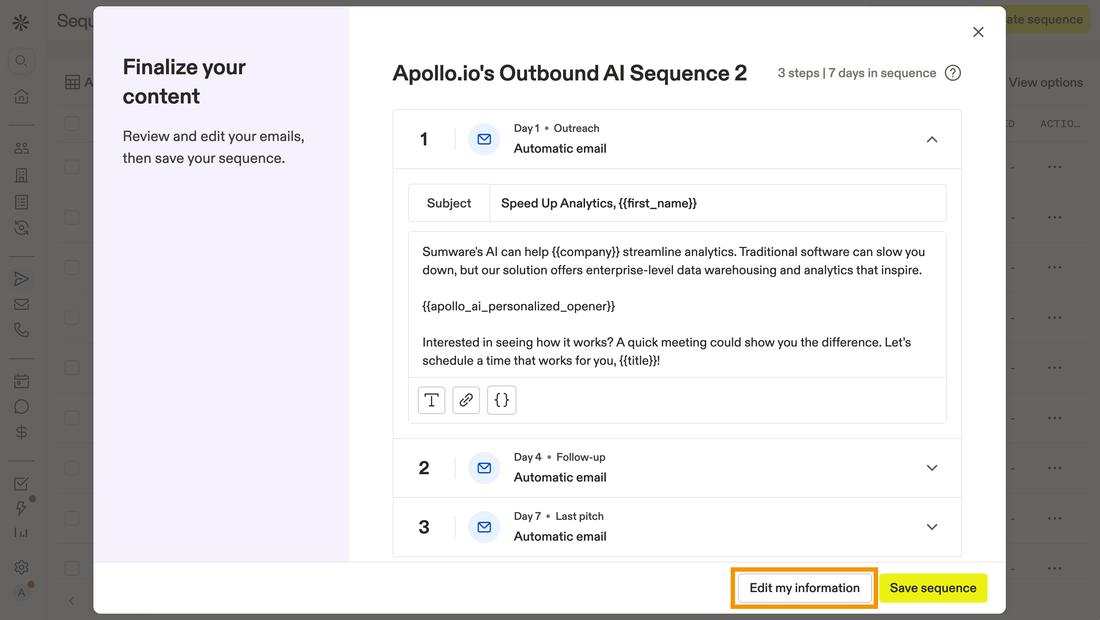
- Audit your Apollo sequences. Go to Sequences in Apollo and screenshot or paste every step, including the delay days and the email copy. None of this exports anywhere useful.
- Identify which contacts are actively in a sequence. Export that segment separately. You do not want to re-enroll mid-sequence leads at Step 1 in Instantly.
- Check your sending domains. If you are using Gmail or Outlook inboxes connected to Apollo, confirm you know the SMTP credentials or can reconnect those mailboxes to Instantly. If Apollo was managing dedicated inboxes, you are starting fresh and need a warm-up period.
- Note your unsubscribes and bounces. Apollo tracks opt-outs per contact. Export the “unsubscribed” status column in your CSV and treat it as a suppression list in Instantly before any campaign goes live.
Pause all active Apollo sequences before you begin the export. Running sequences in both tools simultaneously will double-send to contacts and guarantee spam complaints.
In Apollo, go to People, apply whatever filters match the contacts you want to migrate, then click Export. Select CSV and include all fields: first name, last name, email, company, title, phone, LinkedIn URL, and any custom fields your team added. Apollo caps each export at 10,000 rows, so segment by owner or list if your database is larger. Save each file with a clear name like apollo-export-2026-09-27-batch1.csv.
Open the CSV in Google Sheets or Excel. Delete the columns Apollo exports that Instantly does not need (Apollo internal IDs, sequence status, enrichment source). Rename columns to match Instantly's expected variable names: 'First Name' becomes 'firstName', 'Company Name' becomes 'companyName', and so on. For any list segment older than 90 days, run it through a verifier. Instantly has a built-in verification tool, or you can use a dedicated service before upload. Do not skip this step. Bouncing more than two percent of a new campaign list will damage your sender score on day one.
Connect your sending mailboxes to Instantly under Accounts. If these inboxes were previously used in Apollo, Instantly's warm-up can run in parallel while you finish the migration. If they are brand new inboxes, plan for at least fourteen days of warm-up before launching cold campaigns. Instantly's warm-up network handles this automatically once you toggle it on per mailbox. Set daily sending limits conservatively for the first week: twenty to thirty emails per inbox per day.
In Instantly, go to Leads and create a new lead list. Upload your cleaned CSV. Instantly will prompt you to map columns to its lead fields. Match firstName, lastName, email, companyName, and any custom variables your sequences reference. If you use merge fields like a custom opening line or a personalized case study, those need their own columns in the CSV and must be mapped here. Verify the preview shows the right data before confirming the import.
Create a new campaign and paste your Apollo sequence steps into Instantly's email editor. Recreate the day delays between steps (Instantly calls these 'schedule gaps'). If your Apollo sequences had LinkedIn steps or call tasks, those do not exist natively in Instantly. Handle those steps in a separate tool or route them through an n8n workflow that triggers off a campaign status webhook. Set your sending schedule to match your team's business hours.
Before activating any campaign, upload your Apollo unsubscribe export as a suppression list in Instantly under Settings. This prevents re-emailing anyone who previously opted out. Then activate the campaign for your warm leads first. Watch the analytics tab for the first 48 hours: open rate, reply rate, and bounce rate. If bounce rate climbs above two percent, pause and re-verify before continuing.
What breaks and what does not transfer
The contacts themselves travel cleanly. The behavioral data does not.
Apollo tracks opens, clicks, replies, and bounce history per contact. None of that comes over in the CSV export. Instantly starts a fresh engagement record for every lead. If you were using Apollo’s intent signals or AI scores to prioritize follow-up, you lose that context the moment you leave. There is no workaround for this. Build your prioritization logic fresh inside Instantly using reply and click signals from the new campaigns.
Custom fields are the other common failure point. Apollo lets you store arbitrary data on contacts, but it exports those fields with whatever column header you assigned them inside Apollo. Instantly reads custom variables by the column name in your CSV. If your Apollo field is called “Pain Point” and your Instantly sequence template references customField1, the variable will render blank in every email.
The gotcha: Apollo exports custom fields with human-readable headers like “Trigger Event” or “ICP Tier.” Instantly’s variable syntax expects the exact column name from your CSV. If you import a column called “Trigger Event” but your email template references triggerEvent or custom1, every email sends with an empty placeholder instead of the value. I have seen this burn entire campaign sends before anyone catches it in the preview. Always send a test to yourself first.
Fix: standardize column names in your CSV
BEFORE uploading to Instantly.

Rename in Google Sheets:
"Trigger Event"  →  triggerEvent
"ICP Tier"       →  icpTier
"Pain Point"     →  painPoint

Then in your Instantly email template,
reference them as:
{{triggerEvent}}
{{icpTier}}
{{painPoint}}

Send a test email to yourself from
Instantly before activating the campaign
to confirm variables resolve correctly.
If you need to enrich or transform fields at scale before import, Clay is the right tool for this. Pipe your Apollo CSV into a Clay table, run enrichment to fill gaps, rename columns with a formula column, and export a clean Instantly-ready CSV. The Clay enrichment waterfall handles cases where Apollo data is stale, which is common for contacts exported from searches rather than saved lists. Skip building this in Google Sheets if you have more than 2,000 rows and more than five custom fields. It becomes brittle fast.
Verify it worked
Do not call the migration complete until you have checked all four of these.
- Variable rendering: Send a test email to a personal inbox from each active campaign. Confirm every merge field populates. An empty
{{firstName}}in a live campaign is the fastest way to kill reply rates. - Suppression coverage: Search for three known unsubscribes from your Apollo export in Instantly’s lead database. They should not appear as active leads in any campaign.
- Bounce rate after 48 hours: Open Instantly’s analytics for the first active campaign. Bounce rate above two percent means your list needs more verification before you continue.
- Inbox warm-up status: In Instantly’s Accounts tab, confirm each sending mailbox shows an active warm-up health score. A score below 70 out of 100 in the first week means you should throttle sending further.
If you are syncing contact status back to HubSpot, verify that the Instantly-HubSpot integration (via native connector or n8n) is writing reply and bounce events to the contact record. The HubSpot contact timeline should show Instantly activity within an hour of a reply landing. If it does not, your attribution will drift within a week. For more on keeping deliverability clean after a platform switch, the cold email deliverability audit guide covers the exact checks I run post-migration.
Should you switch, or stay?
Choose Instantly if

- You are paying Apollo primarily for the sequencer and buying data elsewhere
- Your team sends high volume cold email and needs granular inbox rotation controls
- You want to decouple your data provider from your sending tool to control costs
Choose Apollo if

- You actively use Apollo's prospecting database to build lists and your per-credit cost is reasonable
- Your team needs built-in dialer, LinkedIn tasks, and sequencing in one UI
- You are under 2,000 contacts and the all-in-one convenience outweighs the cost difference
The migration is four hours of work and two days of clock
The actual hands-on time is manageable. Four to six hours of real work spread across two days. The timeline stretches because warm-up is not optional and because you should run your first Instantly campaign in parallel with a reduced Apollo send before fully cutting over. Give yourself two days of overlap, watch the Instantly analytics, and only then pause Apollo sequences permanently.
Trying to do this in a single afternoon almost always means sending from inboxes that are not ready. That costs you deliverability that takes weeks to recover. Be patient with the clock even when the actual work is done.
Sources
Frequently asked questions
Can I export all my contacts from Apollo.io?
Yes. Apollo lets you export up to 10,000 records per CSV from the People tab. You may need multiple exports if your database is larger.
Does Instantly import custom fields from Apollo?
Instantly supports custom variables on leads, but you need to map Apollo's field names to Instantly's variable syntax during import. There is no auto-mapping.
Will my Apollo email sequences transfer to Instantly?
No. Sequences do not export from Apollo in any reusable format. You will need to recreate them manually or paste the copy into Instantly's campaign builder.
How long does an Apollo to Instantly migration take?
A clean migration with fewer than 5,000 contacts and two or three sequences takes most teams four to six hours spread across two days, mainly because warming inboxes overnight is not optional.
Do I need to re-verify my email list after exporting from Apollo?
Yes. Apollo's data freshness varies, and any list older than 90 days should be run through a verification tool before importing into Instantly to protect your sender reputation.
Free Newsletter
Get new posts by email.
Migration guides, tool comparisons, and pricing breakdowns from real RevOps and GTM stacks, sent as they publish.
No spam. Unsubscribe anytime.
Enjoying this? Share it with your team.
Keep reading

Some links are affiliate links. Disclosure.