GuidesMigration guide
How to Migrate Lemlist to Smartlead (2026 Guide)
Step-by-step migration from Lemlist to Smartlead: export sequences, preserve domains, warm new inboxes, and sync reply data back to your CRM with n8n.

The tools compared
Entry prices from the pricing index, read Aug 12, 2026
Some links on this page are affiliate links. If you buy through them we may earn a commission at no cost to you; it never changes a verdict. How we make money
The short answer
Export your Lemlist sequences and contacts, re-authenticate your sending domains in Smartlead, run a 2-week warm-up on new inboxes, then use n8n to push reply events back to HubSpot or Salesforce.
The trigger is always the same. A client messages me on a Tuesday: reply rate dropped from 4% to under 0.5% overnight, Lemlist is flagging sends, and their primary sending domain is sitting in a blocklist. That is the moment teams decide to migrate. If you are reading this, you are probably at that moment. This guide skips the “should I switch” debate and goes straight to execution: how to get off Lemlist cleanly, stand up Smartlead correctly, and wire reply data back to your CRM so nothing falls into a black hole.
Before you migrate
Do not touch Smartlead until you have done this prep inside Lemlist. I have watched teams spin up new campaigns in Smartlead while Lemlist was still sending, and the result is double-sends, angry prospects, and a deliverability mess that takes months to unwind.
Here is the pre-migration checklist:
- Pause every active Lemlist sequence. Go to Campaigns, filter by “Active,” and pause each one. Do not delete them yet.
- Export your contact lists. For each campaign, export leads as CSV. The file includes email, first name, company, current step, and reply status.
- Export sequence copy. There is no bulk export for step content. Open each campaign, copy the subject lines and body text into a Google Doc. Yes, this is manual. Do it anyway.
- Screenshot your sending schedule settings. Days, times, timezone, throttle limits. You will recreate these in Smartlead.
- Audit your sending domains. Pull a list of every domain you have authenticated in Lemlist. Check them against MXToolbox’s blacklist lookup before deciding which ones to bring forward.
- Note contacts mid-sequence. Anyone past Step 1 but without a reply needs special handling. Either let them finish in Lemlist (daily volume paused, just let the sequence complete naturally) or tag them and suppress from Smartlead until they go cold.
- Download your analytics. Lemlist’s reporting is not cleanly exportable after you cancel. Grab screenshots or CSV exports of open and reply rates by campaign before you close the account.
The migration steps
Create your Smartlead account. Under 'Email Accounts,' add each sending mailbox via Google Workspace OAuth or SMTP/IMAP. My baseline recommendation: a minimum of 3 inboxes per active campaign to enable rotation. If your existing domains are clean on MXToolbox, re-authenticate them by adding the DKIM, SPF, and DMARC records Smartlead generates into your DNS provider. Allow 24-48 hours for propagation before sending anything.
Before rebuilding campaigns, turn on warm-up for every inbox you just connected. Set the daily warm-up volume to start at 5 and ramp by 5 per day. Smartlead's warm-up network exchanges emails with real inboxes, not a closed loop, which matters for reputation signals. Do not skip this step even for domains that are only weeks old. Blasting a high daily volume immediately after setup is a fast way to burn a freshly registered domain.
Create a new Campaign for each Lemlist sequence you want to port. Paste your step copy into Smartlead's sequence editor. Map merge fields using Smartlead's variable syntax (for example, the first name variable). Set your sending schedule to match what you exported from Lemlist. Under 'Campaign Settings,' configure inbox rotation across all connected inboxes, enable reply detection, and set the daily cap per inbox to around 30-40 per day while warm-up is still running.
Upload the CSVs you exported from Lemlist into each corresponding Smartlead campaign. Before uploading, remove any contacts who replied (they belong in your CRM follow-up flow, not back in a cold sequence) and any contacts who bounced (upload those emails to Smartlead's global blocklist under Settings > Blocklist). For contacts who were mid-sequence in Lemlist, either keep them suppressed until that Lemlist sequence naturally ends, or note their last step and pick them up at the next logical step in Smartlead.
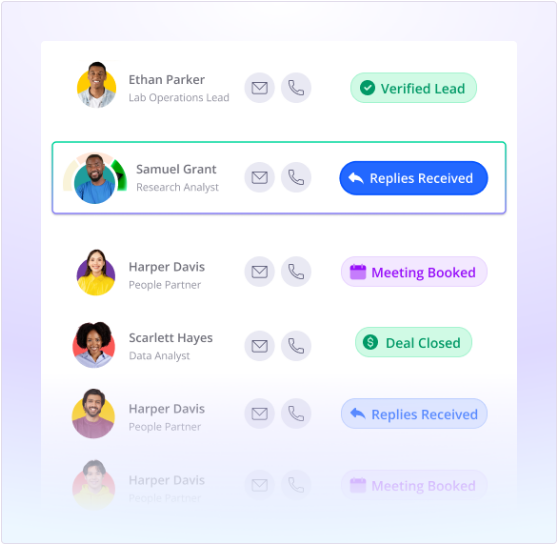
In Smartlead, go to Settings > Webhooks and create a new webhook pointed at your n8n instance's webhook URL. Select the 'Reply Received' event. In n8n, build a workflow: the Webhook trigger catches the payload (it includes prospect email, campaign name, reply body, and timestamp). Add a HubSpot or Salesforce node to search for the contact by email. On match, update a custom property (for example, 'Last Cold Reply Date') and create a follow-up task or move the deal stage. On no match, create a new contact and assign it to the sequence owner.
For the first 5 days, run Smartlead at low volume (20-30 emails per day total) while monitoring inbox placement with MailReach or Smartlead's built-in deliverability score. Keep Lemlist paused but do not cancel it yet. Once you see consistent inbox placement above 90% in Smartlead and your warm-up scores are trending up, cut over fully and cancel Lemlist.
What breaks and what does not transfer
Two things consistently catch teams off guard: LinkedIn steps and video personalization.
Lemlist has native LinkedIn connection request and message steps built into sequences. Smartlead does not. If your sequences were multichannel, you need to either rebuild the LinkedIn touchpoints in a separate tool (most teams I see run a Clay workflow to trigger LinkedIn tasks in parallel) or accept that you are running email-only sequences in Smartlead for now. That trade-off is real. Plan for it before you migrate, not after.
Lemlist’s video personalization feature (the dynamic intro video thumbnails) also has no Smartlead equivalent. If that was doing work for your reply rates, you need to compensate with copy quality and tighter list segmentation, not a feature swap.
The gotcha: domain reputation does not travel with you. Teams assume that because a domain “works,” they can re-authenticate it in Smartlead and continue at full volume. That assumption is wrong. The domain’s sending history follows it. If you burned a domain through bad list hygiene or high spam complaints in Lemlist, re-authenticating it in Smartlead inherits that reputation. You cannot wash a domain by switching ESPs. This mistake can cost extra ramp time that nobody budgeted for.
Domain triage protocol before migration:

1. Run domain in MXToolbox > Blacklists
2. Check Google Postmaster Tools for
   spam rate (flag if > 0.3%)
3. Pull 30-day bounce rate from Lemlist
   (flag if > 5%)

Decision:
- Clean on all 3: re-authenticate in Smartlead
- Flagged on 1: rest 30 days, then re-authenticate
- Flagged on 2+: retire the domain entirely,
  register a new variation and warm from zero
The n8n webhook workflow is also worth testing carefully before you go live. Smartlead’s webhook payload includes a reply_email_body field, but it sends raw HTML. Strip those tags in your n8n expression before writing the reply body to any CRM field. A simple regex replace node handles this in about 30 seconds.
Verify it worked
Before you declare the migration complete, run through these four checks:
- Inbox placement test. Send a test sequence to a seed list using MailReach or GlockApps. Confirm inbox rate is above 90% across Gmail, Outlook, and your prospects’ primary providers.
- Reply detection fires correctly. Reply to one of your test emails from a personal inbox. Confirm the n8n workflow triggers, logs to your CRM, and creates the follow-up task. Check it twice: once for a contact that already exists in HubSpot and once for one that does not.
- Bounce handling works. Send to one known invalid address and confirm it hits the bounce bucket in Smartlead without retrying. Verify your global blocklist was updated automatically.
- No double-sends from Lemlist. Log into Lemlist and confirm all campaigns are still paused. Cross-reference the contact list in Smartlead against recent Lemlist activity to make sure nobody is sitting in both active queues.
For teams running the full cold email deliverability monitoring workflow, this is the point where you plug the new Smartlead campaigns into that monitoring stack.
Should you switch or stay?
Choose Switch to Smartlead if

- You are hitting Lemlist rate limits or deliverability blocks regularly
- You run 3 or more sending inboxes and need solid rotation
- Your sequences are email-only or you are willing to handle LinkedIn steps separately
Choose Stay on Lemlist if

- Your sequences are genuinely multichannel and LinkedIn steps are core to your reply rates
- You rely on Lemlist's video personalization thumbnails and they are working
- Your current deliverability is healthy and you have not hit blocks
If you built your outbound motion around Clay for enrichment feeding into Lemlist, the transition I described in the LinkedIn outbound loop: Clay, Lemlist, HubSpot guide maps directly to the same stack with Smartlead as the sending layer instead.
Getting back to full volume
The migration itself is a weekend project. The hard part is the 10 to 14 day warm-up window, and that is exactly what teams consistently try to shortcut. Every team I have seen blast full volume before warm-up completes has ended up in spam folders and had to restart from scratch. Respect the ramp. Use that time to audit your list quality, tighten your copy, and get the n8n CRM sync working so that when replies do start coming in, they land in your pipeline automatically.
Smartlead without CRM sync is still a manual reply-tracking operation. With the webhook workflow running, every reply triggers a task, moves a deal stage, and creates an audit trail. For any RevOps team operating at scale, that is not optional. Per Google’s email sender guidelines, maintaining clean sending practices and prompt reply handling is also increasingly a deliverability factor, not just a sales hygiene one. Wire it up on day one.
Sources
Frequently asked questions
How long does it take to migrate from Lemlist to Smartlead?
The technical migration takes 1-2 days. Add 10-14 days of inbox warm-up before you send cold volume at scale, so budget roughly 2-3 weeks total.
Will my Lemlist sequences transfer to Smartlead automatically?
No. Smartlead has no native Lemlist import. You export sequences as CSV or copy step text manually, then rebuild them inside Smartlead's campaign editor.
Do I need new sending domains when I switch to Smartlead?
Not necessarily. You can re-authenticate existing domains in Smartlead via DKIM and SPF, but any domain that triggered Lemlist blocks should be rested for at least 30 days before reuse.
Can Smartlead sync reply data to HubSpot?
Yes, via webhook. Smartlead fires a webhook on reply events that you can catch with n8n or Zapier and write back to a HubSpot contact or deal record.
What happens to active Lemlist campaigns during the migration?
Pause all active Lemlist sequences before migrating. Contacts mid-sequence should either finish in Lemlist or be manually noted so you do not double-send from both platforms.