Migrate Lemlist to Reply.io Without Losing Sequences
 By Ian Chamberland 10 min read
 TL;DR
Export your Lemlist sequences as CSVs, recreate them in Reply.io using the sequence builder, then reconnect your sending domains and warm inboxes before resuming sends.
On this page
The moment teams pull the trigger on migrating from Lemlist is almost always the same: they hit a deliverability wall, get dinged on LinkedIn step limits, or realize the reporting gives them no clear sense of sequence-level revenue. The tool served them fine at 200 contacts a month. At 2,000, the gaps show. Reply.io handles multi-channel at scale more cleanly, the analytics are richer, and the API is genuinely usable without a developer on call. But there is no migration wizard. You will be doing this by hand, and if you skip the prep you will crater your sending reputation in the process.
Before you migrate
Do not touch the sequence builder in Reply.io until these items are checked off. Rushing this phase is how you end up with duplicate sends and a burned inbox.
- Audit active sequences in Lemlist. Document every sequence that has contacts in-flight. Note the step each contact is on, because you will need to enroll them at the equivalent step in Reply.io, not from Step 1.
- Export all contacts per sequence. In Lemlist, go to each campaign, filter by status (active, paused, bounced, unsubscribed), and export to CSV. Keep separate files per campaign status. Unsubscribes are the most important: import them to Reply.io’s global unsubscribe list before any send.
- Document your sequence step copy. Lemlist does not export full email body text in its contact CSVs. Open each campaign, copy every step’s subject line and body into a shared doc. Note any liquid-style personalization variables so you can remap them to Reply.io’s merge field syntax (Reply.io uses
{{firstName}}style tokens). - Inventory your sending inboxes. List every email account connected to Lemlist, the daily send limits set, and current warm-up status. You will reconnect these to Reply.io via OAuth or SMTP/IMAP.
- Check your DNS records. Confirm SPF, DKIM, and DMARC are passing for every domain in use. MXToolbox surfaces this in seconds. If records are broken now, fix them before migration, not after.
- Pause all active Lemlist sequences. Set sequences to paused, not stopped. You want to preserve the enrolled contact list so you can cross-reference it against what gets imported to Reply.io.
For each campaign, export four CSVs: Active, Paused, Bounced, and Unsubscribed. In Lemlist's campaign view, use the People tab, filter by status, and hit Export. For unsubscribes, also export the global unsubscribe list from Settings > Unsubscribes. These files become your source of truth. Store them in a shared folder labeled with the campaign name and export date.
In Reply.io, go to Settings > Do Not Contact List and upload your global unsubscribe CSV. This is non-negotiable. If you enroll a contact who previously opted out via Lemlist, you are looking at a CAN-SPAM violation and a near-certain spam complaint. Reply.io will de-dupe against this list on every future import automatically once the list is seeded.
Navigate to Settings > Email Accounts in Reply.io and add each inbox. Use OAuth for Google Workspace accounts (more stable than app passwords) and SMTP/IMAP for custom mail servers. After adding each inbox, run Reply.io's built-in Email Health check. Any inbox that was idle during migration should be put in warm-up mode for 5-7 days before it sends campaign volume. Reply.io's warm-up module handles this natively, or you can bridge an external warm-up tool if you were already using one.
In Reply.io, create a new sequence for each Lemlist campaign. Use your step-copy doc to recreate each email step, remapping merge fields. Lemlist's `{{firstName}}` maps directly to Reply.io's `{{firstName}}`. Custom variables like `{{companyName}}` map to Reply.io custom fields you create under Settings > Custom Fields before importing. Set delays between steps to match your original Lemlist cadence. If you were running A/B variants in Lemlist, Reply.io supports step-level A/B testing natively under the sequence step settings.
This is where most migrations break. Do not import all active contacts to Step 1. For each contact, note which step they were on in Lemlist (your export CSV includes this under the 'Current Step' column). In Reply.io, you can import contacts and assign them to a specific step by creating a separate import per step number. Import the 'Step 2 contacts' CSV and enroll them starting at Step 2. Repeat for each step cohort. This prevents re-sending emails contacts already received.
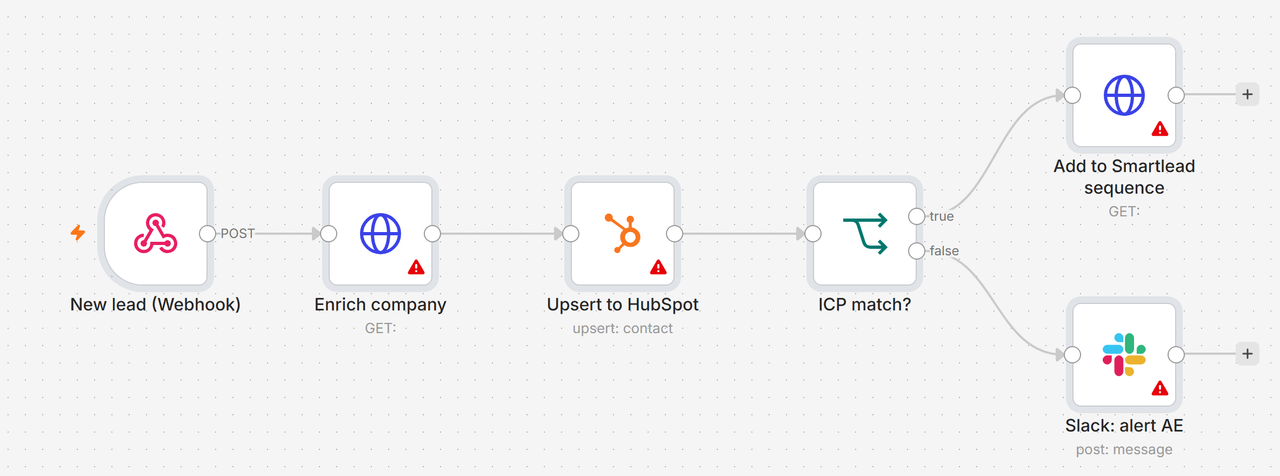
If you are pulling net-new contacts from Clay, Apollo, or a CRM enrichment flow, set up an n8n workflow to push them directly to a Reply.io sequence via the Reply.io REST API (POST /v1/people endpoint, then POST /v1/people/{id}/sequence to enroll). The n8n HTTP Request node handles both calls. This replaces the manual CSV cycle entirely for new contacts going forward and is significantly more reliable than Zapier for high-volume sequences.
What breaks and what does not transfer
The two things that catch people off guard are Lemlist’s image personalization and LinkedIn step carry-over. I have watched both sink otherwise clean migrations.
Lemlist’s dynamic image personalization (custom backgrounds with the prospect’s logo or name baked into an image) does not exist in Reply.io. There is no native equivalent. If your sequences rely heavily on that feature for reply rates, factor in a rebuild period using Hyperise as a bridge, or accept that those steps will become plain-text steps. My recommendation: test the plain-text version first. Most teams find the reply rate difference is smaller than expected once copy is tightened.
LinkedIn steps in Lemlist (connection requests, profile visits, InMail) do not transfer as configured steps in Reply.io. Reply.io supports LinkedIn steps via its Chrome extension in a similar but not identical way. You will need to remap each LinkedIn step and reconnect your LinkedIn account inside Reply.io separately.
Gotcha: merge field columns missing in imported CSV
Reply.io’s importer maps CSV column headers to contact fields by exact name match. If your Lemlist export uses “First Name” (with a space) and Reply.io expects “firstName” (camelCase, no space), the field imports blank and every email sends with an empty personalization token. I have seen this burn entire batches before anyone on the team noticed.
// Correct column header format for Reply.io imports
firstName,lastName,email,companyName,customField1

// Lemlist export headers (rename before import)
"First Name" -> firstName
"Last Name"  -> lastName
"Email"      -> email
"Company"    -> companyName

// Check Reply.io's required format at:
// app.reply.io > People > Import > Download Template
If you are migrating bounced contacts, do not re-import them. Hard bounces from Lemlist are a signal about the address, not the platform. Importing them into Reply.io and resending will generate fresh bounces that damage your new sending reputation. Keep a separate “do not import” list of all hard-bounce addresses from your Lemlist exports.
For deliverability specifics on diagnosing what broke before or during a migration, the cold email deliverability audit post covers the full diagnostic flow.
Verify it worked
Before you resume sending at full volume, run these four checks:
- Send a test email from each reconnected inbox to a seed address (Mailtester.com or GlockApps). Confirm SPF, DKIM, and DMARC all pass in the header analysis. Any failure here means you re-authenticate before sending a single campaign contact.
- Check the Do Not Contact list count in Reply.io against your Lemlist unsubscribe export. The numbers should match within a small margin. If Reply.io shows 50 and your export had 300, the import failed silently.
- Verify step counts per sequence. Open each rebuilt sequence and count the steps. Cross-reference against your step-copy doc. A sequence that should have 5 steps showing 4 means a step got lost.
- Run a small batch before full volume. Enroll 20-30 contacts in the first rebuilt sequence and monitor the Reply.io analytics dashboard for 48 hours. Confirm open tracking, click tracking, and reply detection are all firing. Only then scale back to full daily limits.
Should you actually make this switch?
Choose Switch to Reply.io if

- You are sending more than 1,500 contacts per month and need per-sequence revenue attribution
- Your team uses a CRM (HubSpot, Salesforce) and needs a tight two-way sync with activity logging
- You want a single platform for email plus LinkedIn plus calls without stitching three tools together
Choose Stay on Lemlist if

- Your reply rates depend on dynamic image personalization and you do not want to rebuild that stack
- You are a solo sender under 500 contacts per month where Lemlist's pricing makes more sense
- Your sequences are stable and migration risk outweighs any feature gap you are experiencing
Choose Migrate to Smartlead instead if

- Your primary need is inbox rotation and high-volume cold email without multichannel complexity
- You want native warm-up baked into the sending infrastructure rather than bolted on
- You are managing multiple client accounts and need workspace separation
If your situation is more “contact data migration” than sequence migration, the Apollo to Instantly migration guide covers many of the same CSV mapping and field-match pitfalls in a different tool context.
The migration itself is a weekend’s work if you are disciplined about the prep. The payoff is a platform that actually scales with a modern GTM stack without you manually exporting CSVs every time you want to see what is working. Do the unsubscribe import first, rebuild sequences before enrolling anyone, and let the inboxes warm before you hit full send volume. In that order, you will not lose a sequence, a domain, or a contact list.
Sources
Frequently asked questions
Can I import Lemlist sequences directly into Reply.io?
No. Reply.io has no native Lemlist importer. You export contacts and step copy manually, then rebuild sequences in Reply.io's sequence editor.
Will my sending domain reputation carry over when I migrate?
Your DNS records (SPF, DKIM, DMARC) stay with your domain registrar, so reputation is preserved. But you must re-authenticate the domain inside Reply.io before sending.
How long does a Lemlist to Reply.io migration take?
A focused operator can complete the migration in one to two business days for fewer than ten active sequences. Larger sequence libraries take three to five days.
Does Reply.io support the same email warm-up features as Lemlist?
Reply.io includes built-in warm-up via its Email Health module and integrates with Mailreach and Lemwarm-compatible inboxes for additional coverage.
Can I use n8n to automate the contact sync during migration?
Yes. An n8n workflow can pull contacts from a Lemlist export webhook or CSV source, enrich or filter them, and push directly to a Reply.io sequence via the Reply.io REST API.
Free Newsletter
Get new posts by email.
Migration guides, tool comparisons, and pricing breakdowns from real RevOps and GTM stacks, sent as they publish.
No spam. Unsubscribe anytime.
Enjoying this? Share it with your team.
Keep reading

Some links are affiliate links. Disclosure.