GuidesMigration guide
Apollo to Smartlead Migration: Keep Your Data and History
Step-by-step guide to migrating from Apollo to Smartlead without losing contact data, sending history, or deliverability. Covers Clay, n8n, and Instantly too.

The tools compared
Entry prices from the pricing index, read Aug 12, 2026
Some links on this page are affiliate links. If you buy through them we may earn a commission at no cost to you; it never changes a verdict. How we make money
The short answer
Export your Apollo contacts and sequences, warm your Smartlead inboxes first, then rebuild sequences and replicate suppression lists before sending a single cold email.
The trigger I see most often is a deliverability cliff. Teams run Apollo hard for six months, reply rates drift from 4% down to 1.5%, and someone finally checks the spam folder to find half the sequences never landed in inbox. At that point, switching sequencers feels urgent. The trap is rushing the export and recreating the same problems in a new tool. Done right, an Apollo to Smartlead migration takes about a week of prep and preserves everything that matters: your suppression list, your contact history, and your domain reputation.
Before you migrate
Do not touch the destination until the source is fully documented. A common mistake is deleting Apollo campaigns the moment you sign up for Smartlead, then spending days trying to reconstruct suppression lists from memory. Spend a half-day here. It saves a month of headaches.
Pull these artifacts from Apollo before anything else:
- All contact exports, segmented by campaign (Apollo lets you filter by sequence, then export to CSV per sequence, not as one giant file)
- The “do not contact” list under Settings > Do Not Contact, exported as CSV
- Activity logs for every contact you care about (Apollo activity is exportable at the contact level under People > export with activity columns checked)
- Your sequence copy: subject lines, body text, wait days, and send conditions for every active and recently paused sequence
- DNS records you authenticated in Apollo: SPF, DKIM, and DMARC entries, plus which inbox accounts were connected
If you also ran campaigns in Instantly and are consolidating into Smartlead, that migration has its own contact-data quirks worth reviewing first.
Filter People by each sequence, export per campaign as separate CSVs. In a spreadsheet, VLOOKUP against your do-not-contact list and remove bounced contacts flagged in Apollo activity logs. You want one clean master CSV per campaign segment, not one 50,000-row dump. This is also the moment to re-enrich stale records. If a contact is more than 90 days old, run it through Clay or a waterfall enrichment before importing to Smartlead.
Connect your sending inboxes under Smartlead's Email Accounts tab. Enable Smartlead's built-in warmup immediately. Do not skip this even if the inbox was previously connected in Apollo. Apollo's warmup data does not transfer, and Smartlead's warmup pool is separate. Per Smartlead's own documentation, fresh domains need a minimum of 14 days before cold sending. Inboxes migrated from another sender can reduce that to 5 to 7 days, but only if you ramp volume conservatively.
Apollo exports sequences as human-readable copy only. Create each sequence in Smartlead's campaign builder, paste your subject lines and body copy, and set step delays to match your Apollo cadence. One structural difference worth knowing: Smartlead separates campaign-level settings (sending window, max emails per day, inbox rotation) from step-level settings. Set the campaign throttle to 20 to 30 emails per day per inbox during your first week, then ramp. Tag each rebuilt sequence with the Apollo campaign name for traceability.
In Smartlead, go to your campaign and use the Import Leads CSV flow. Map columns carefully. Apollo exports first name, last name, email, company, title, and any custom fields you defined. Smartlead's default fields use slightly different labels. Map explicitly. Do not rely on auto-mapping for custom columns. In my experience, it guesses wrong about 30% of the time. Import the do-not-contact list to Smartlead's global blocklist under Settings > Blocklist before you import any campaign contacts.
Under Email Accounts in Smartlead, verify SPF, DKIM, and DMARC for every connected domain. If you are using Google Workspace or Microsoft 365 inboxes, Smartlead walks you through the DNS records. Do not assume the authentication you had in Apollo carries over. Each platform registers its own DKIM selector. Confirm authentication is passing in Smartlead's interface before enabling campaigns. MXToolbox is a quick sanity check if you want third-party confirmation.
If your workflow sources prospects from Apollo, enriches them in Clay, and then hands them to your sequencer, rebuild that pipe in n8n. Apollo API to Clay to Smartlead API is a straightforward three-node workflow. POST to Smartlead's /leads endpoint with campaign_id, email, and any custom field values. This replaces any Zap you had pushing Apollo exports to your old sequencer, and it runs continuously rather than as a one-time migration. Zapier chokes on Apollo's pagination above about 5,000 records. n8n handles it without drama.
What breaks and what does not transfer
Most teams are surprised by three things.
Sending history is the biggest loss. Apollo stores reply, click, open, and bounce events per contact. Smartlead has no import endpoint for historical engagement data. Your workaround: before you cut over, export Apollo’s contact activity with the engagement columns and push that data into your CRM (HubSpot, Salesforce, Pipedrive, whatever you use). Tag contacts as “Apollo engaged” or “Apollo bounced” in the CRM. The history lives somewhere queryable even if Smartlead never sees it.
Merge fields use different syntax. Apollo uses {{first_name}} style tokens. Smartlead uses {{FIRST_NAME}} (uppercase by default in most versions). Check every sequence step after rebuilding and normalize the field tokens, or your emails will render the raw placeholder instead of the personalization. If you want to catch broken merge fields before they go live, Smartlead’s deliverability diagnostics surface rendering errors in test sends. I make this check a hard gate before any campaign goes live.
Gotcha: Apollo’s “remove replied” and “remove bounced” auto-suppression does not port over. Apollo silently suppresses contacts who reply or hard-bounce. Smartlead has the same logic, but it only applies to activity that happens inside Smartlead. Any contacts who replied in Apollo are not suppressed in Smartlead unless you explicitly add them to the blocklist or mark them as unsubscribed before import.
Fix: Pre-filter your export CSVs before import.
# In your Apollo export CSV,
# filter out any row where:
# - "Email Status" = "Bounced"
# - "Replied" = "Yes"
# - "Unsubscribed" = "Yes"
# Then add those emails to Smartlead blocklist
# via Settings > Blocklist > Upload CSV
# before importing campaign contacts.
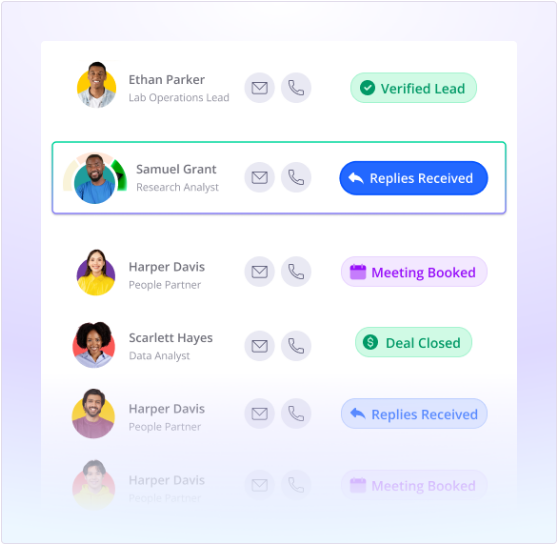
The n8n canvas view is useful for confirming your API sync is running. The webhook trigger, enrichment node, ICP branch, and Smartlead push all show green checkmarks in the canvas once the workflow is active. Verify that before you declare the migration done.
Verify it worked
Four concrete checks before you call the migration complete:
- Blocklist integrity. Send a test import of 5 known do-not-contact emails. Smartlead should reject them at the campaign level. If they pass through, your blocklist upload did not take correctly.
- Authentication passing. In Smartlead’s Email Accounts view, every connected inbox should show a green checkmark on SPF, DKIM, and DMARC. Red means DNS propagation is incomplete.
- Warmup running. Check the warmup dashboard in Smartlead for each inbox. You should see warmup emails going out and receiving positive engagement signals. If warmup shows zero activity after 24 hours, the inbox is not properly connected.
- Test campaign send. Create a one-step campaign with a seed list of inboxes you control (use mail-tester.com or your own test addresses across Gmail and Outlook). Confirm the email renders correctly, merge fields resolve, and the email hits inbox rather than spam.
Who should switch, and who should stay
Choose Smartlead if

- You send from 5 or more inboxes and need native rotation and warmup in one tool.
- Your reply rates have dropped below 2% and you suspect deliverability, not copy, is the problem.
- You want API-first infrastructure and plan to push contacts from Clay or n8n rather than manually uploading.
Choose Apollo if

- You rely heavily on Apollo's built-in contact database and intent signals for prospecting, not just sequencing.
- Your team does not have dedicated RevOps to manage inbox infrastructure separately.
- You are on a single-domain setup sending under 200 emails per day.
Choose Instantly if

- You want Smartlead-level inbox rotation but prefer Instantly's simpler campaign UX.
- Your sequences are short (3 steps or fewer) and you do not need advanced branching.
One week is enough if you sequence the work correctly
This migration is not technically hard. It is sequencing work: do the exports and blocklist prep before you touch Smartlead, warm inboxes before you import contacts, verify authentication before you hit send. The teams that have a painful time treat it as a same-day CSV import. If you need to enrich your contact list during the migration, Clay fits cleanly into this workflow before the Smartlead import step. And if you are running a multi-step automation to keep Apollo sourcing flowing into Smartlead campaigns, n8n is the orchestration layer I’d use. It handles Apollo API pagination and rate limits far better than Zapier does at this volume.
Sources
Frequently asked questions
Can I import Apollo contacts directly into Smartlead?
Yes. Export contacts from Apollo as CSV, then import into a Smartlead campaign. Map the Apollo custom fields manually since field names rarely match.
Does Apollo export sending history?
Apollo exports contact activity logs as CSV, but Smartlead has no native way to import that history. You store it in your CRM or a flat file for reference.
How long does inbox warming take before I can send in Smartlead?
Smartlead recommends at least 14 days of warmup for a fresh domain. If you are moving warmed inboxes, the warmup period can be as short as 3 to 5 days.
Will my Apollo sequences transfer to Smartlead automatically?
No. Apollo does not export sequences in a format Smartlead can import. You rebuild them manually or script the creation via Smartlead's API.
Can n8n automate the Apollo to Smartlead migration?
Partially. n8n can pull contacts from Apollo's API, enrich via Clay, and POST them into Smartlead campaigns via API. Sequence copy-paste is still manual.