GuidesAi Agents
Lindy HubSpot Sales Workflow: Inbox-Zero Agent Guide
Build a Lindy AI agent that triages sales emails, creates HubSpot contacts, and routes replies in under 60 minutes. A real RevOps workflow tutorial.

The tools compared
Entry prices from the pricing index, read Aug 12, 2026
Some links on this page are affiliate links. If you buy through them we may earn a commission at no cost to you; it never changes a verdict. How we make money
The short answer
Connect a Lindy AI agent to HubSpot via native integration to auto-triage inbound sales emails, create or update contacts, and route hot replies to reps without touching a single Zap.
Every sales ops team I’ve worked with has the same inbox problem. Inbound demo requests, pricing questions, and “just checking in” replies pile up overnight, reps triage manually in the morning, and the genuinely hot lead from 11 PM gets a response at 10 AM. Speed-to-lead matters more than almost any other variable in the conversion funnel, and a single missed hour compounds. This tutorial walks through exactly how I’d build a Lindy AI agent that monitors a sales inbox, classifies intent, creates or updates contacts in HubSpot, and pings the right rep, all without a Zapier chain holding it together.
What This Workflow Does and Why It Works
The core idea is dead simple. Give an AI agent the inbox as input, CRM write access as output, and let it handle the mechanical triage that currently steals 20 to 40 minutes from every rep’s morning. According to HubSpot Research’s State of Sales 2024, reps spend only 28% of their week actually selling. The rest disappears into data entry, internal communication, and exactly this kind of email admin.
Lindy is purpose-built for this pattern. Unlike Relevance AI, which excels at research-heavy, multi-tool agent chains, Lindy’s trigger model starts from communication events (email received, calendar invite, Slack message) and ships with native CRM write actions. That makes it genuinely faster to wire up for inbox-to-HubSpot workflows than either Relevance AI or a hand-rolled n8n flow. My opinion: if your primary use case is email triage into a CRM, don’t start with n8n. You’ll spend three days on HTTP request nodes that Lindy covers in three clicks.
The workflow I’ll build has five layers:
- Email received in a Gmail or Outlook sales inbox
- Lindy classifies intent (demo request, pricing, existing customer, spam)
- Lindy looks up or creates a contact in HubSpot
- If intent is “hot,” Lindy drafts a reply and notifies the rep in Slack
- If intent is “nurture,” Lindy logs a note and enrolls the contact in a HubSpot sequence
Building the Agent Step by Step
Before you start, you need four things: a Lindy account on the Pro plan or higher (the free tier does not expose multi-action workflows), a HubSpot account with API access enabled, a Gmail or Outlook inbox dedicated to sales (shared alias or individual rep), and a Slack workspace where reps actually live.
In Lindy, create a new agent and choose 'New Email Received' as the trigger. Connect your Gmail or Outlook OAuth. Set the filter to watch only your sales inbox alias, for example sales@yourcompany.com. I always add a sender-domain exclusion list here to skip internal email and automated platform notifications. Without this filter, Lindy will try to triage every Intercom notification you receive.
This is the highest-leverage step in the entire build. In the agent's instruction block, tell Lindy to read the subject, sender, and body and output a JSON object with three fields: intent (one of: demo-request, pricing-question, existing-customer, unsubscribe, spam), urgency (hot, warm, cold), and a one-sentence summary. Be explicit about edge cases. I write something like: 'If the email mentions a competitor or a specific budget, always classify urgency as hot regardless of other signals.' The structured output is what every downstream action keys off of.
Add a HubSpot action block and authenticate via OAuth. Choose 'Create or Update Contact' and map fields: sender email to Contact Email, sender name to Full Name, and your one-sentence summary to the 'Last Inbound Email Summary' custom contact property (create that property in HubSpot first under Settings > Properties). Also map the intent label to a custom 'Inbound Intent' single-select property. This gives your team a filterable view of every inbound lead without opening Gmail.
Branch on urgency equal to 'hot.' In that branch, add a Lindy 'Draft Email Reply' action, giving it context: company name from HubSpot enrichment (Lindy can call the HubSpot Contacts API in the same flow), the email summary, and an instruction to write a two-sentence reply that proposes a specific call time using Calendly. Then add a Slack action that posts to your #sales-alerts channel: sender name, company, intent, urgency, the draft reply, and a direct link to the HubSpot contact record. The rep reviews and sends in one click.
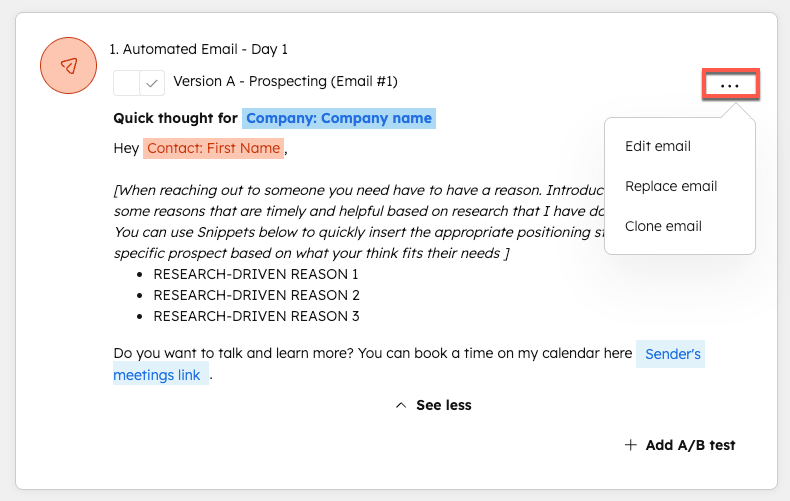
In the 'warm' branch, add a HubSpot 'Enroll in Sequence' action. Map it to whichever sequence fits the intent. I keep separate sequences for pricing inquiries versus general demo requests because the first line of each is completely different. For 'cold' and 'spam,' just log a note and do nothing else. A common mistake is enrolling everyone in a sequence regardless of intent. Your unsubscribe rate will spike and HubSpot will start throttling your sequence sends.
The Gotcha: Prompt Drift and Malformed JSON
The single most common failure mode I’ve seen is the classification prompt returning free-text instead of valid JSON when the email body is unusually long or written in a language Lindy’s instruction wasn’t expecting. The entire downstream mapping breaks silently. No contact update. No Slack ping. The lead just dies.
The trap: You write your classification prompt in natural language and Lindy usually returns clean JSON. Then a prospect writes a 900-word email in French and the agent returns a paragraph of reasoning instead of a JSON object. HubSpot gets no contact update. The rep gets no Slack ping. The lead dies quietly.
Fix this with two changes: add an explicit instruction at the end of your prompt (“Respond ONLY with valid JSON, no explanation, no markdown fences”), and add a Lindy error-handling branch that fires a fallback Slack alert whenever the JSON parse fails. At minimum, a human sees the raw email.
// Expected Lindy output (enforce this format in prompt)
{
  "intent": "demo-request",
  "urgency": "hot",
  "summary": "Prospect at 200-person SaaS co asking for a live demo this week, mentions budget approved."
}

// Prompt closing line to add:
// "Respond ONLY with valid JSON matching
// the schema above. No markdown, no
// explanation, no code fences."
A second gotcha: HubSpot’s sequence enrollment API requires the contact to have a valid, opted-in email address and the enrolling user to have sequence permissions. I’ve had Lindy throw a silent 403 on enrollment for half a batch because the OAuth token was scoped to read-only. Double-check your HubSpot private app or OAuth scopes include crm.objects.contacts.write and automation.sequences.write before you assume the workflow is working. According to HubSpot’s Sequences API documentation, missing scope errors won’t always surface as obvious failures in the UI.
Which Teams Should Build This (and Which Shouldn’t)
Is This Agent Right for Your Team?
Choose Lindy + HubSpot if

- You have a dedicated inbound sales alias with 20 or more emails per day
- Your reps are currently spending 30 or more minutes per day on inbox triage
- You already use HubSpot as your CRM and have sequence infrastructure in place
Choose n8n + HubSpot if

- You need more custom logic than Lindy's action library covers (e.g., enrichment waterfalls, multi-source lookups)
- You have an engineer or technical RevOps person who can maintain a self-hosted workflow
- Budget is tight and you want to avoid per-action pricing at scale
Choose Relevance AI + HubSpot if

- Your triage requires deep research on the sender before routing (company size, tech stack, funding)
- You want to chain multiple AI tools (web search, LinkedIn lookup, scoring model) in one agent
- You're building a more complex SDR agent, not just an email classifier
This workflow pairs well with signal-based outbound if you want to close the loop between inbound intent and outbound triggers. And if you’re enriching contacts as part of the triage step, the Clay enrichment waterfall approach is worth layering in before the HubSpot upsert.
Ship It, Then Tune It
The workflow above is a 60 to 90 minute build. The prompt is the only thing that needs ongoing attention. Review misclassified emails weekly for the first month, add concrete examples to the instruction block, and your accuracy will compound. According to Google Cloud’s research on AI agent reliability, structured output constraints are the single highest-leverage reliability lever for production agents. That’s exactly why the JSON enforcement step is non-negotiable and not optional polish.
Once the agent is stable, the math is straightforward. If you recover 30 minutes per rep per day and pay $49 per month for Lindy, you’ve paid for the tool before the first coffee break. For teams I’ve set this up with, the real win isn’t the time savings. It’s that a hot lead at 11 PM gets a draft reply in Slack by 11:05, and the rep sends it before the prospect opens their laptop the next morning.
Sources
Frequently asked questions
Does Lindy integrate natively with HubSpot?
Yes. Lindy has a native HubSpot integration that can create contacts, update deal stages, and log activities without a Zapier middleman.
What can a Lindy sales agent do with HubSpot?
It can classify inbound emails by intent, create or update HubSpot contacts and deals, draft personalized replies, and Slack-notify reps on hot leads.
Is Lindy better than Relevance AI for HubSpot workflows?
Lindy wins on out-of-the-box HubSpot actions and email triage speed. Relevance AI is stronger when you need multi-step research agents with custom tool chains.
How long does it take to set up Lindy with HubSpot?
A basic triage and contact-creation workflow takes under 60 minutes. Adding deal routing and Slack alerts adds another 30 to 45 minutes.
What email providers does Lindy support for inbox monitoring?
Lindy supports Gmail and Outlook natively for inbox trigger workflows as of mid-2026.