GuidesMigration guide
Migrate Pipedrive to HubSpot Without Wrecking Your Pipeline
Step-by-step guide to migrating from Pipedrive to HubSpot, covering data export, field mapping, deal preservation, and the gotchas that kill pipelines.

The tools compared
Some links on this page are affiliate links. If you buy through them we may earn a commission at no cost to you; it never changes a verdict. How we make money
The short answer
Migrating from Pipedrive to HubSpot takes 2 to 4 weeks done properly: export contacts and deals as CSV, map custom fields before import, rebuild automations natively in HubSpot, and validate every deal stage before going live.
The decision to move off Pipedrive usually happens in one of three moments: the VP of Marketing gets blocked trying to tie campaign attribution to closed-won deals, the team hits Pipedrive’s automation ceiling on a critical renewal sequence, or leadership decides they want one platform for CRM, email, and reporting instead of a patchwork of point solutions. When that moment hits at a 30-to-150 person company, the migration to HubSpot is almost always what follows. And almost always underplanned.
The deal pipeline is consistently where teams bleed. Not because HubSpot can’t handle the data, but because field mapping and stage logic get rushed, and reps show up Monday morning to a CRM that looks nothing like what they left.
Before You Migrate
Resist the urge to export everything immediately. The prep work you do in the next 48 hours determines whether reps trust the new CRM on day one or file a support ticket every morning for two weeks.
Here is the pre-migration checklist I run before every migration:
- Audit your Pipedrive data quality first. Pull a full contact export and check for duplicate organizations, orphaned deals (no contact associated), and fields that haven’t been populated in 12 months. Clean it in Pipedrive, not in HubSpot after import. Cleaning post-import is four times slower.
- Document every custom field in Pipedrive with its field type: text, number, dropdown, date, phone. HubSpot’s importer cannot infer field types from CSV values. You will create each of these as a custom property in HubSpot before a single CSV lands.
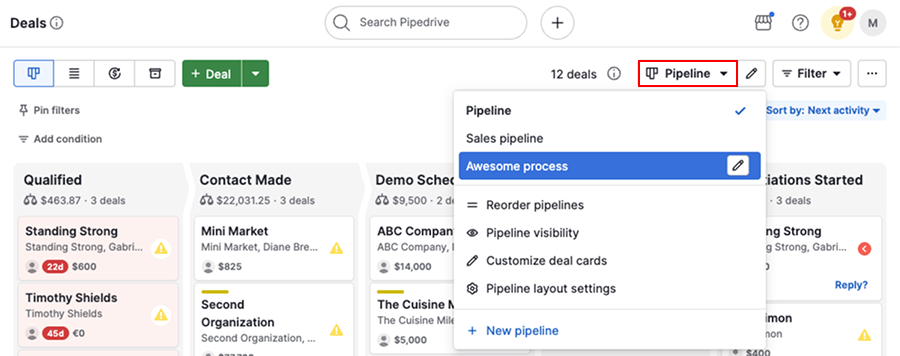
- Screenshot your active Pipedrive pipelines and stage names. You are rebuilding these in HubSpot before the import. Stage names do not need to match exactly, but you need a mapping document or you will fat-finger something critical at 11pm the night before go-live.
- Pause active Pipedrive automations that send emails or change deal stages. A half-migrated dataset with live automations firing is how you send a “congratulations on closing” email to a prospect still in discovery.
- Export all six Pipedrive data objects separately: Contacts, Organizations, Deals, Activities, Notes, and Products. Each is a separate CSV download from Settings > Data Fields > Export.
- Identify your open deals by stage and note the owner. These are the records you QA first after migration, full stop.
The Migration, Step by Step
Before any data touches HubSpot, go to CRM > Pipelines and build your deal pipeline with the correct stage names and probabilities. Then go to Settings > Properties and create every custom contact, company, and deal property that exists in Pipedrive. Match the field types exactly: a Pipedrive dropdown becomes a HubSpot 'Dropdown select' property, a multi-select becomes 'Multiple checkboxes'. This step takes 2 to 4 hours but prevents the most painful class of import errors. Skip it and you will spend three days untangling bad data.
HubSpot's association logic requires the parent object to exist before child records link to it. Import your Pipedrive Organizations CSV as HubSpot Companies first. Map 'Name' to 'Company name', address fields to their HubSpot equivalents, and your custom org fields to the properties you just created. Download HubSpot's import template for Companies from the import wizard to get the column header format right. Using your own column headers is a common mistake that causes silent field-mapping failures.
Import Contacts next. The critical column here is 'Company name' (exact match to what you just imported) or the HubSpot Company ID if you exported that in step 2. HubSpot will auto-associate on company name match. Map 'Owner' to 'Contact owner' using HubSpot user email addresses, not display names. If your Pipedrive reps have different emails in HubSpot, create a mapping spreadsheet before this step. I keep that spreadsheet in Notion so every team member references the same source.
This is where most migrations fail. Your Pipedrive export contains a 'Stage' column with values like 'Qualified' or 'Proposal Sent'. HubSpot's importer does not know what those mean. During import, HubSpot prompts you to map each unique stage value in your CSV to a stage in your new pipeline. Do this manually and carefully. Deals with unmapped stages get dropped into 'Appointment Scheduled' by default, which is wrong and hard to find later. Also map 'Close Date', 'Amount', and 'Deal Owner'. All four.
HubSpot imports Activities as Tasks and Notes as Notes, but the association to contacts and deals requires that those records already exist (steps 2 through 4). Export Activities and Notes from Pipedrive with their associated contact and deal identifiers. During import, HubSpot matches on email address for contacts and deal name for deals. Duplicate deal names cause misassociations, so deduplicate before this step. Completed activities import with their completion date intact.
Pipedrive's workflow exports are not readable by HubSpot. Document every active automation in Pipedrive (trigger, condition, action) and rebuild them natively. Deal-stage automations become HubSpot Workflows triggered on 'Deal stage is'. Email sequences become HubSpot Sequences. Rotations and assignments use HubSpot's rotation action. I rebuild these in a sandbox org first, then promote to production after QA. Budget a full week for any team running more than 20 active automations.
What Breaks (and What Doesn’t Transfer)
Not everything survives a CRM migration. Pretending otherwise is how you create a trust deficit with your sales team on go-live day.
The most common migration breakages I see:
- Email history: Pipedrive does not export email thread content, only logged email metadata. Reps lose the actual email bodies unless you used Pipedrive’s BCC sync and can export separately from Gmail or Outlook.
- File attachments: Documents attached to deals in Pipedrive do not transfer. Export them manually and re-upload to HubSpot deal records, or use a shared Drive folder linked in notes.
- Deal rotation history: Which rep a deal was rotated from is not in the export. If you need that for commission attribution, pull it manually before migration.
- Product line items with revenue schedules: Pipedrive Products export without multi-year schedule data. Map single values manually and rebuild schedules in HubSpot’s Quotes tool.
- Activity associations to multiple contacts: Pipedrive allows an activity to be linked to multiple contacts. HubSpot’s CSV importer associates to one contact per activity. For multi-contact meetings, add secondary associations manually post-import.
The workaround for email history (n8n API approach):
If preserving email context matters for your team, run a parallel n8n workflow before migration cutover:
Trigger: Schedule (run once)
Node 1: Pipedrive API, GET /deals (paginated)
Node 2: Pipedrive API, GET /deals/{id}/mailMessages
Node 3: Transform, format as HubSpot Engagement
Node 4: HubSpot API, POST /engagements/v1/engagements
          body: {
            engagement: { type: "EMAIL" },
            associations: { dealIds: [hubspot_deal_id] },
            metadata: {
              subject: "[subject]",
              body: "[body_text]"
            }
          }
Node 5: Airtable, log deal_id + status
This pulls Pipedrive’s mail messages via API (requires Pipedrive Professional or above for full email sync access) and writes them as Email engagements in HubSpot. I run this before the CSV imports complete so email context lands on day one. Expect 3 to 5 hours of n8n setup and 1 to 8 hours of runtime depending on record volume.
Verify It Worked
Before you give reps access, run these four checks. All four. In order.
- Open deal count matches: Export open deals from Pipedrive filtered to today and count rows. Compare to HubSpot Deals filtered by “Deal stage is not Closed Won or Closed Lost.” Within 2% variance is acceptable. More than that means missing records somewhere in the import chain.
- Stage distribution sanity check: In HubSpot, group deals by stage and compare to Pipedrive’s funnel view. If your pipeline was front-weighted in Pipedrive and looks back-weighted in HubSpot, stages mapped incorrectly during the deals import.
- Owner attribution: Pull a deal owner breakdown in HubSpot and compare to Pipedrive. Unowned or misassigned deals are the fastest way to blow up rep trust in the new system.
- Sample 10 deals end-to-end: Pick 10 high-value open deals, open them in both systems side by side, and verify contact associations, notes, custom field values, and close dates match. Fix every discrepancy before cutover.
For teams running HubSpot lead scoring tied to deal signals, revalidate your scoring thresholds post-migration. The property values powering those scores are now coming from imported data rather than real-time activity, and the numbers often shift in ways that aren’t obvious until a “hot” lead falls off the board.
Who Should Switch (and Who Should Stay)
Pipedrive vs HubSpot: choose by situation
Choose HubSpot if

- Your marketing team needs campaign attribution connected to deal revenue
- You want sequences, workflows, and CRM in one platform without integrations
- You are scaling past 25 reps and need role-based permissions and reporting
Choose Pipedrive if

- Your team is under 15 reps and purely pipeline-focused with no marketing motion
- You want the simplest possible UI with minimal admin overhead
- Budget is the primary constraint and you do not need native email marketing
If you are on the fence because of cost, the honest math: HubSpot’s Sales Hub at Starter runs $20/seat/month. For a 10-rep team that is $2,400/year. Pipedrive Professional, which unlocks the automation features most teams actually need, runs $49/seat/month. That same 10-rep team pays $5,880/year. The gap is smaller than most RevOps leaders assume, and HubSpot gives you the marketing attribution and reporting surface that Pipedrive simply doesn’t have. If you’re also evaluating moving the other direction, the tradeoffs flip entirely.
For teams running API-heavy migration workflows, n8n is the right tool. Full stop. Don’t bother with Zapier’s CRM migration templates for anything over 5,000 records. n8n handles pagination, transformation, error logging, and retry logic in ways Zapier’s template-based approach can’t touch. Teams that used Zapier for migrations at scale spent two extra weeks cleaning up partial imports. The ones that used n8n had clean logs and knew exactly what failed. I’ve also used n8n to build parallel-write periods where new records land in both systems simultaneously during a two-week cutover window. That alone reduces the “we missed a deal” anxiety that tanks adoption. If you’re already using n8n for outbound automation (as in a LinkedIn outbound loop), the migration workflow fits naturally into existing infrastructure without spinning up new tooling.
The 30-Day Window That Determines Success
The migration is not done on go-live day. Run Pipedrive in read-only mode for 30 days. Disable new record creation but keep it accessible so reps can pull historical context. Spend the first two weeks fixing association errors and missing field values that only surface when reps are actually working deals. Spend weeks three and four validating that rebuilt automations are firing correctly and that HubSpot reporting matches what leadership expected when they approved the switch.
HubSpot’s migration documentation covers the import mechanics thoroughly. Pair it with Pipedrive’s export documentation and your field mapping spreadsheet, and the technical side is genuinely manageable. The organizational side, getting reps to trust the new system, is where the real work lives.
Sources
Frequently asked questions
How long does a Pipedrive to HubSpot migration take?
A clean migration for a team of 10 to 50 reps typically takes 2 to 4 weeks. Most of that time is field mapping and QA, not the actual data transfer.
Does Pipedrive export all deal data?
Pipedrive exports contacts, organizations, deals, activities, and notes as separate CSV files. Custom fields export with their values but lose their field-type metadata, so you must recreate them in HubSpot before importing.
Will my Pipedrive automations transfer to HubSpot?
No. Pipedrive workflows do not export. You need to rebuild them as HubSpot Workflows or Sequences from scratch, which is actually an opportunity to simplify bloated automation logic.
Can I migrate Pipedrive to HubSpot for free?
The native CSV import is free, but HubSpot's paid tiers unlock custom properties, multiple pipelines, and automation features you likely need. Most teams land on Sales Hub Starter at minimum.
What is the best tool to automate a Pipedrive to HubSpot migration?
For complex migrations, n8n is the most flexible option: it can read Pipedrive's API directly, transform records, and push to HubSpot's API with full field control and error logging.