GuidesMigration guide
Migrate from Close CRM to Pipedrive Without Losing Sequences
Step-by-step guide to migrating from Close CRM to Pipedrive, covering custom fields, sequences, deal pipelines, and the gotchas that break most migrations.

The tools compared
Entry prices from the pricing index, read Aug 12, 2026
Some links on this page are affiliate links. If you buy through them we may earn a commission at no cost to you; it never changes a verdict. How we make money
The short answer
You can migrate from Close to Pipedrive cleanly in under a week if you remap custom fields before export, rebuild sequences as Pipedrive automations, and verify pipeline stage parity before going live.
The trigger I see most often: a founder or sales manager opens their Close bill, realizes they are paying for a built-in dialer their reps stopped using six months ago, and starts asking whether Pipedrive could do the job for half the cost. The answer is usually yes. But the migration is where teams get into trouble. Close’s sequences and custom fields have no direct export path into Pipedrive, and if you go in unprepared, you lose activity history, orphan deals from contacts, and rebuild sequences from memory. Here is what actually works.
Before you migrate: the prep checklist
Do not open the Pipedrive importer until you have done this work. The import tool is forgiving about column names but completely unforgiving about missing destination fields. Everything that does not have a place to land gets silently dropped. No warning. No error log. Gone.
Start by auditing your Close account:
- Export everything from Close. Go to Settings > Export Data. Pull Contacts, Leads, Opportunities, and Activities as separate CSV files. Do not merge them yet.
- List every custom field in Close. Settings > Custom Fields. Screenshot the name, type (text, number, dropdown, date), and which object it lives on (Lead, Contact, Opportunity). This is your field mapping source of truth.
- Document your current pipeline stages. Close calls them “Opportunity Statuses.” Write down the exact names and the order. You will recreate these in Pipedrive as a pipeline.
- Pause or complete any active sequences. Contacts mid-sequence will get orphaned when you cut over. Either finish the steps manually, move them to a holding list, or accept that they need to be re-enrolled on the Pipedrive side.
- Audit your integrations. If you have Zapier or native integrations firing on Close Lead status changes, those need to be re-pointed before you deactivate Close.
For teams I work with at Homegrown Growth Co., I also pull a count of Leads with no associated Contact. Close’s Lead-centric model means you will have orphaned records that Pipedrive’s Contact-first model simply cannot receive as-is. Knowing that number before you start prevents a nasty surprise on import day.
In Pipedrive, go to Settings > Data Fields. Create every custom field you listed from Close, matching the field type exactly. A Close dropdown field should become a Pipedrive dropdown. A text field stays text. Get the names right now because renaming after import breaks any automations you build later. Do this for Contacts, Organizations, and Deals separately.
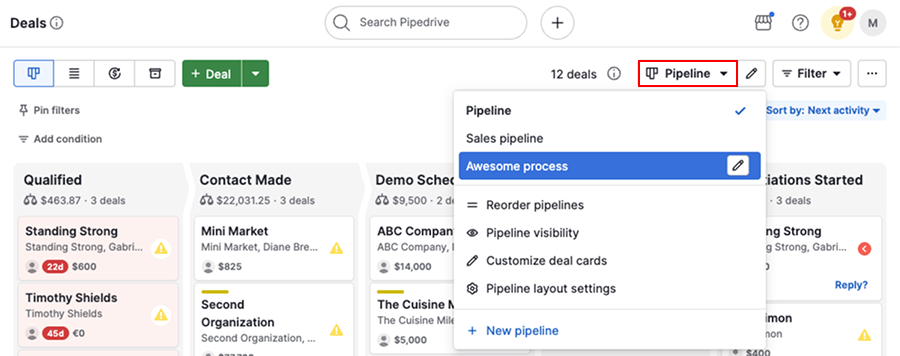
Go to Pipedrive > Pipelines and create a new pipeline. Add each stage that maps to your Close opportunity statuses. Do not rename them yet even if the old names feel wrong. During the import, you will need to match incoming stage names to existing Pipedrive stages, and exact string matches save hours of cleanup.
Open your Close Contacts and Opportunities exports in Google Sheets or DBeaver. Join on the Lead ID so each Opportunity row carries the Contact's email address. Pipedrive's importer links Deals to Contacts by email. Without this join, every deal imports as a floating record with no person attached. This single step prevents the most common post-migration complaint I hear from teams.
Use Pipedrive's native importer (Settings > Import Data > Spreadsheet). Import Contacts first so the email records exist. Import Organizations second. Then import Deals, mapping the contact email column to 'Person email' in the mapping screen. Pipedrive will link deals to the correct contact automatically. Import Activities last, manually setting the 'Deal ID' or 'Person email' as the anchor.
If you used Close's built-in sequences, you have two options. For simple follow-up cadences, use Pipedrive's Workflow Automation (available on Advanced and above) to trigger emails on deal stage changes or inactivity timers. For full multi-step email sequences, reconnect a dedicated sequencer like Lemlist or Instantly to Pipedrive via their native integrations or an n8n workflow. Map Pipedrive deal stage = 'New' as the enrollment trigger.
Update any Zapier zaps, native integrations, or webhook endpoints that were pointing at Close. Check your email provider sync (Pipedrive's Smart Email BCC or native Gmail/Outlook sync), your calendar integration, and any reporting tools. Once everything is confirmed live in Pipedrive and you have validated a full week of activity logging, cancel or downgrade your Close subscription.
The gotchas: what breaks and what does not transfer
The field mapping step catches most people off guard. Close uses a Lead-centric data model where a Lead is the top-level object. Pipedrive uses a Contact and Organization model. They are not equivalent. Every Close Lead that has no Contact email will fail to import as a Person in Pipedrive. My rule of thumb: if more than 5% of your Leads are email-less, clean that list in Close before you export, not after.
The second thing that breaks is activity history. Call logs from Close export with a “Type: Call” column, but Pipedrive expects an Activity Type that matches one of its configured types. If your Pipedrive account does not have “Call” as an activity type (it does by default, but verify), those rows import as blank types and become invisible in filters. Check Pipedrive’s custom fields documentation before you assume the defaults are set up correctly for your account.
Gotcha: Close Lead IDs do not survive import
Close exports use an internal Lead ID as the primary key. Pipedrive generates its own IDs on import. If you try a second import pass to fix something, you cannot match on ID. You end up with duplicates. Teams that re-import without deduplicating first end up with inflated record counts. The fix is cheap to run before you start. It is expensive to unwind after.
# Before any import pass, fingerprint on email + company
# Use this to deduplicate a re-import CSV

import pandas as pd

df = pd.read_csv("close_contacts_export.csv")

# Normalize email to lowercase
df["email_norm"] = df["Email"].str.lower().str.strip()

# Drop duplicates keeping the most recent updated_at
df_deduped = (
    df.sort_values("Updated At", ascending=False)
    .drop_duplicates(subset=["email_norm"])
    .reset_index(drop=True)
)

df_deduped.to_csv("contacts_deduped.csv", index=False)
print(f"Original: {len(df)}, Deduped: {len(df_deduped)}")
The third gotcha is sequences. Close sequences are stored as templates tied to the Lead record. They do not export. There is no “download my sequences as steps” button. You are rebuilding from scratch. If your sequences live in your head and not in a doc, write them down before you lose access to the sequence UI. For more complex multi-channel cadences, look at how teams auto-create Pipedrive deals from reply events in Instantly as a pattern for reconnecting your outbound stack.
Verify it worked: four concrete checks
- Deal count matches. Export your Deals from Pipedrive immediately after import. The row count should match your Close Opportunities export. Any delta means records dropped.
- Custom fields populated. Open five random Deal records in Pipedrive and confirm the custom fields are not blank. Spot-check against the original Close export row for the same contact.
- Deal-to-contact links exist. Filter Pipedrive Deals by “Person is not set.” This should return zero results. If it returns anything, you have floating deals that will not show up in contact timelines.
- Email sync is logging. Send a test email from your connected Gmail or Outlook through a Pipedrive contact record. Confirm it appears in the activity timeline within five minutes. If it does not, your email sync is not authenticated correctly.
According to Pipedrive’s import documentation, the most common import failure is a mismatch between the incoming column header and the destination field label, which is exactly why pre-creating fields matters. If you have done a similar exercise with another platform, the ActiveCampaign to HubSpot migration guide has a comparable verification checklist worth cross-referencing.
Should you actually make this switch?
Choose Switch to Pipedrive if

- Your team has stopped using Close's built-in dialer and you are paying for it anyway
- You want a lighter pipeline UI without the Lead-centric data model overhead
- You are under 10 seats and the cost delta between Close and Pipedrive Advanced matters
Choose Stay on Close if

- Your reps live in Close's built-in power dialer and switching sequencers is a bigger lift than the cost savings
- You rely on Close's SMS sequences natively and do not want to bolt on a third tool
- Your CRM data model is Lead-heavy and restructuring it would break downstream reports
The migration is the easy part
The technical work of exporting, remapping, and importing is a four-day project with the right prep. What takes longer is the cultural change. Reps who have memorized Close’s keyboard shortcuts. Managers who built their reporting on Close’s Lead statuses. Anyone who assumed “the CRM” and “the sequencer” were the same tool. Pipedrive is a cleaner, cheaper pipeline tool. It is not a direct replacement for everything Close does natively. Plan for the capability gaps, not just the data move, and the cutover will go smoothly.
Sources
Frequently asked questions
Can you export sequences from Close CRM?
Close does not export sequences as executable objects. You export the contact data and activity history, then rebuild sequence logic manually in Pipedrive's workflow automation or a connected tool like Lemlist.
Does Pipedrive support custom fields like Close CRM?
Yes, Pipedrive supports custom fields on Contacts, Organizations, Deals, and Activities. You need to create them manually in Pipedrive before importing your Close CSV so the columns map correctly.
How long does a Close to Pipedrive migration take?
A clean migration with 5,000 to 20,000 records typically takes three to five business days: one day for field mapping, one for import and validation, and two to three for rebuilding sequences and automations.
Will my Close activity history import into Pipedrive?
Call logs, notes, and email activity from Close export as CSV rows. You can import them as Pipedrive Activities or Notes, but they will not be linked to the correct deal automatically without a cleanup step.
What is the cheapest Pipedrive plan for a small sales team?
Pipedrive Essential starts at $14 per seat per month (billed annually) and covers basic pipeline management and limited automation. Most teams coming from Close need the Advanced plan at $29 per seat for email sync and workflow automations.