GuidesEmail
Pipedrive Automated Emails: Set Up Sequences Without a Dev
How to build Pipedrive automated emails using native workflows, plus when to extend with n8n, Apollo, or Kit. No developer required.

The tools compared
Entry prices from the pricing index, read Aug 12, 2026
Some links on this page are affiliate links. If you buy through them we may earn a commission at no cost to you; it never changes a verdict. How we make money
The short answer
Pipedrive can send automated emails natively via Workflow Automations on Professional and above, but for true multi-step sequences you need to pair it with a dedicated sending tool like Apollo or route through n8n.
Pipedrive is a solid pipeline tool, but its email automation story trips up a lot of RevOps operators who assume “CRM with email” equals “sequence builder.” It does not. What Pipedrive actually ships is a Workflow Automation engine that fires single emails on triggers, not a cadence tool. That gap matters when your reps expect three-touch follow-up sequences to run hands-off. This guide walks through exactly what you can build natively, where the ceiling is, and how to route around it with tools like Apollo, n8n, or Kit without writing a line of code.
What Pipedrive email automation actually covers
Pipedrive’s Workflow Automations engine (Professional plan and above, roughly $49 per seat per month billed annually) lets you trigger an email when a deal moves stages, a contact is created, a custom field is updated, or an activity is marked done. Each automation fires one email per trigger event. You can chain automations together with time delays to simulate a sequence, but this is not a cadence tool and it behaves differently. If the contact replies, the chain does not stop unless you add a condition branch to check for that.
The email itself comes from the connected mailbox of the deal owner, uses a template you build inside Pipedrive, and supports merge fields drawn from deal and contact properties. Personalization is adequate for transactional triggers. It is not adequate for a seven-step outbound cadence with A/B subject lines and reply detection.
Per Pipedrive’s own documentation, a single workflow can include up to twenty actions, which technically means you could wire twenty sequential emails with delays. I’d argue this is the wrong tool for that job. The absence of reply-stop logic alone disqualifies it for outbound work.
Setting up a native Pipedrive automated email
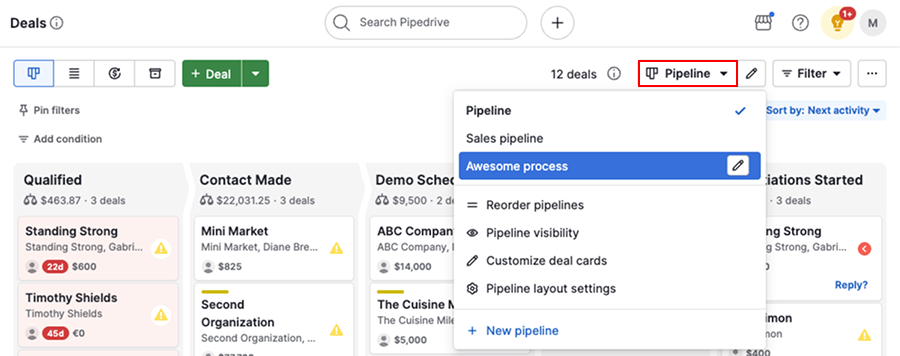
Here is the exact path to wire a single-email automation inside Pipedrive with no outside tools. This covers the core use case: a deal hits a stage and the assigned rep’s connected mailbox sends a templated email automatically.
Go to Settings > Email Sync and connect your Google Workspace or Microsoft 365 mailbox. Pipedrive sends through your actual inbox, not a shared relay, so deliverability inherits your domain reputation. If you have not already warmed the domain, do that first.
Navigate to Templates under the Email tab. Write your message and insert merge fields by clicking the field picker: contact first name, deal name, deal value, company, or any custom field on the person or deal record. Keep the subject line under 60 characters and avoid spam-trigger phrases. Save the template with a clear internal name like 'Demo Booked Confirmation' so automations reference it unambiguously.
Go to Settings > Automations > Add Workflow. Choose your trigger: 'Deal stage changed' is the most common. Set the condition to the specific stage (for example, moved to Qualified). Add an Action: 'Send email', then select the template you just built. The sender will default to the deal owner's connected mailbox.
If you want the email to fire 30 minutes after the trigger rather than instantly, add a Wait action before the Send Email action. Set the duration. Pipedrive's wait actions respect business hours if you configure them, which matters for outbound sends where a 2 AM email tanks open rates.
Move a test deal to the trigger stage manually. Confirm the email lands in the contact's inbox and the activity log on the deal record shows the send. Check that merge fields resolved correctly. If the deal owner's mailbox is not connected, the automation will fail silently, so verify that first.
The trap most teams hit: Pipedrive automations fire on every qualifying event, including ones you did not intend. If a rep manually edits a deal stage and then moves it back, the automation re-triggers. My recommendation: always add a condition check, for example “only if deal was moved from X to Y by a human action, not by another automation,” to prevent duplicate sends. There is one other failure mode worth knowing. If the deal owner has no mailbox connected, the automation silently skips. No error. No log entry visible at the record level. You find out when the contact never got the email.
# Pipedrive Workflow: Demo Booked Follow-up
Trigger:
  Event: Deal stage changed
  From stage: Contacted
  To stage: Demo Booked

Conditions:
  Deal owner: has connected mailbox
  (Check this manually before enabling)

Actions:
  1. Wait: 30 minutes (business hours)
  2. Send Email:
       Template: "Demo Booked Confirmation"
       From: Deal owner mailbox
       To: Primary contact email
When to extend beyond native Pipedrive
Once you need reply detection, multi-step drip logic, A/B testing, or sending from a separate cold outbound domain, native Pipedrive automations are the wrong layer. The right call depends on your use case.
If you are running outbound prospecting sequences, the cleanest path is pushing contacts from Pipedrive into Apollo when a trigger fires, then letting Apollo manage the cadence. You can do this via Zapier or, if you want full control and no per-task fees, via n8n. I’d use n8n here. The Pipedrive node and Apollo node both ship out of the box, and you can add conditional branching (enroll only if the contact’s lead score field is above 60, for example) without extra cost per zap.
If you are running newsletter-style nurture for inbound leads, Kit is a better fit than Apollo. Route the Pipedrive contact data to Kit via webhook, tag them by deal stage, and let Kit’s visual automation builder handle the sequence. This is especially clean for PLG motions where marketing nurture and sales handoff overlap.
For teams who want to stay entirely inside one tool and are willing to upgrade, HubSpot Sequences is the honest comparison point. Sequences natively handles reply detection, step skipping, and meeting booking integration. The tradeoff is cost and CRM migration. If you are happy in Pipedrive for pipeline management, extending with a dedicated sending tool is almost always cheaper than a full platform switch.
For more on how the Pipedrive-to-n8n pattern works for data piping in general, the Pipedrive to JSON export guide covers the underlying mechanics.
Which sending layer fits your Pipedrive stack?
Choose Pipedrive Native Automations if

- You only need single transactional emails on deal stage changes
- Your team is on Professional plan and mailboxes are already connected
- You do not need reply detection or multi-step drip logic
Choose Apollo if

- You are running outbound prospecting cadences from Pipedrive contacts
- You need reply detection, auto-step-skip, and A/B subject line testing
- You want LinkedIn touchpoints mixed into email sequences
Choose n8n if

- You want to orchestrate Pipedrive triggers into multiple downstream tools
- You need conditional logic (enroll only if field X equals Y) without per-task fees
- You have someone comfortable with a no-code workflow builder
Choose Kit if

- You are nurturing inbound leads with educational email sequences
- Your motion blends marketing nurture and sales handoff in the same flow
- You want visual automation with tagging by deal stage or pipeline
If you are also thinking about how Pipedrive contacts get segmented before they hit any automation, the Pipedrive segmentation guide is the logical next read. And if you find yourself needing Mailshake-style sequences and are confused about where Pipedrive ends and a sending tool begins, the Mailshake vs Pipedrive breakdown explains the division of responsibility clearly.
Build the right layer, not the most Pipedrive
Pipedrive automated emails work well for exactly one thing: firing a single, contextual message when a deal event happens. That covers confirmation emails, handoff notifications, meeting reminders, and simple post-demo follow-ups. For anything that looks like a cadence, enroll the contact into Apollo or Kit from a Pipedrive trigger and let a purpose-built tool handle the sequence logic. Per HubSpot Research on sales automation, reps who automate follow-up cadences log 14% more sales activity without increasing hours. The tool that delivers that outcome for a Pipedrive shop is not Pipedrive itself. It is the right sending layer wired to Pipedrive’s trigger events.
Sources
Frequently asked questions
Does Pipedrive have built-in email automation?
Yes. Pipedrive Workflow Automations can trigger single emails on deal stage changes, activity creation, or custom field updates on the Professional plan and above.
Can Pipedrive send email sequences automatically?
Not natively as a true drip sequence. You can chain multiple workflow automations with time delays, but dedicated tools like Apollo or Smartlead handle multi-step cadences more reliably.
What plan do I need for Pipedrive email automation?
The Automations feature is available from the Professional plan, which starts at around $49 per seat per month billed annually.
How do I connect Pipedrive to a sending tool like Apollo?
Use a native integration, Zapier, or n8n to push deal or contact data from Pipedrive into Apollo sequences when a trigger condition fires in Pipedrive.
Can I personalize automated emails in Pipedrive?
Yes. Pipedrive email templates support merge fields for contact and deal properties, so you can pull in the person's first name, company, deal value, or any custom field.