Migrate from Pipedrive to Close Without Losing Your Sequences
 By Ian Chamberland 10 min read
 TL;DR
Export your Pipedrive contacts, deals, and activities as CSV, map custom fields before importing into Close, and rebuild sequences manually since sequence steps do not transfer automatically.
On this page
The moment teams decide to leave Pipedrive is almost always the same: a rep misses a follow-up because sequence automation simply is not there, or the ops lead realizes they are duct-taping Pipedrive together with Zapier workflows just to get basic cadence functionality that Close ships out of the box. The decision is usually obvious. The execution is what trips people up, specifically what happens to active sequences, open deals, and the custom fields your team spent two years building.
This guide covers the full migration path from Pipedrive to Close: what to export, what to rebuild, what silently breaks, and how to verify you landed cleanly. I will also flag where n8n makes the API-based path significantly cleaner for larger datasets.
Before you migrate
Do not touch the importer until you have done this prep work. I have watched teams skip it and spend a week untangling duplicate contacts and broken field mappings. It is not a fun week.
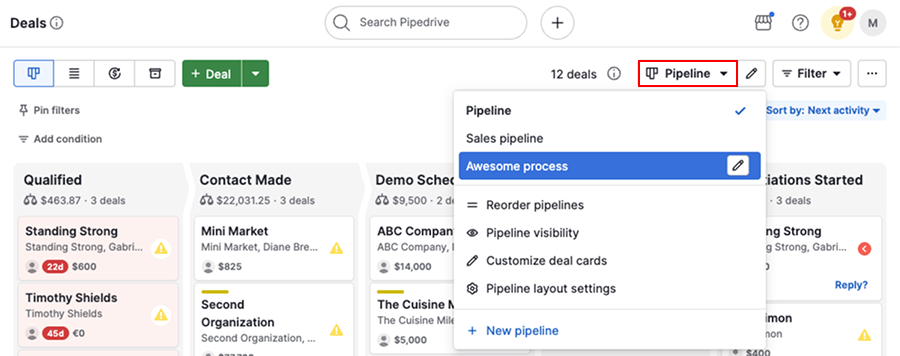
- Audit your Pipedrive pipeline stages. Document every stage name and map it to a Close status or pipeline stage before import day. Close uses a different status model and your stages will not auto-match.
- Export everything from Pipedrive. Go to Settings > Data Fields > Export Data. Pull separate CSVs for contacts (People), organizations (Companies), deals, and activities. Do this at off-hours to get a clean snapshot.
- Pause active sequences. If you are running email sequences via Lemlist, Outreach, or a Zapier-triggered Gmail cadence, pause them before you migrate. You do not want leads getting step-two emails while their contact record is mid-transfer.
- Inventory custom fields. List every custom field in Pipedrive with its data type (text, number, date, dropdown). You will create matching fields in Close before importing. Skip this and you will be doing cleanup at midnight.
- Capture your email templates. Export or copy every sequence email template into a Google Doc. Close has its own template system and you will rebuild these, not paste them from a CSV.
- Notify your team. Set a hard cutoff time. Any deal updates after export but before import create a data gap. Freeze Pipedrive for 2 to 4 hours on migration day.
The migration steps
In Close, go to Settings > Custom Fields and recreate every Pipedrive custom field you inventoried. Match the data types exactly. A Pipedrive dropdown field needs to be a Close choice field with the same option values, or your imported data will fail validation. This step takes 20 to 40 minutes but saves hours of cleanup. Do not skip it.
Close's importer respects object dependencies. Import companies first so contacts can attach to them. Then contacts. Then deals linked to those contacts. Reversing the order orphans records. Use Close's native CSV importer at Settings > Import > CSV Import, or the dedicated Pipedrive import wizard if your account has it enabled.
Close's import UI lets you drag-drop CSV column headers to Close fields before committing. Take your time here. Map 'Organization Name' to Company, 'Person Name' to Contact, pipeline stage to the correct Close status, and every custom field to its Close equivalent. Download the mapping template from the Close import screen and fill it out in advance. Doing this live, under pressure, is how fields end up in the wrong place.
Pipedrive activities (calls, emails, meetings exported as activity CSVs) import into Close as notes on the contact or lead record. They will not appear as native Close call or email objects. This is the biggest fidelity loss in the migration. To minimize it, add a note prefix in your CSV like '[Pipedrive call, 2024-03-15]' so reps know what they are looking at.
Close's built-in sequence feature (under Sequences in the left nav) lets you create multi-step email and call cadences with day-offset scheduling, A/B subject lines, and automatic step skip on reply. Rebuild each of your Pipedrive-era sequences here. If you had five sequences in Pipedrive, plan for roughly 30 to 45 minutes per sequence to rebuild and QA in Close.
For datasets over 20,000 contacts, or if you have complex deal relationships and custom object structures, skip CSV entirely. Build an n8n workflow that calls the Pipedrive REST API to pull paginated contact and deal records, transforms field names to Close's schema, and pushes them via the Close API. This avoids CSV row limits and gives you a clean audit log of what transferred.
What breaks and what does not transfer
Most of the pain in a Pipedrive migration lands in three places: sequence steps, email threads, and automation triggers. Here is the honest breakdown.
What does not transfer: Pipedrive workflow automations (their built-in trigger-action rules) have no equivalent export. You will need to recreate any automation logic in Close’s built-in workflows or in n8n. Email thread history is the other significant loss. Pipedrive stores email as synced threads. Close imports activity-based email exports as flat text notes.
What transfers cleanly: Contact and company records, deal amounts and close dates, pipeline stage names (once mapped), notes entered manually by reps, and attachments if you use the API path.
The gotcha: duplicate contacts on re-import
If you run a test import and then a full import without clearing the test data, Close will create duplicates. Close deduplicates on email address only during CSV import. If a contact record has no email (common for ops-sourced Pipedrive contacts), it will always create a new record. I have seen teams end up with 40% duplicate inflation this way. Run your test import into a sandbox org, or delete test records explicitly before the real run.
# Use Close API to bulk-delete test contacts before real import
# Pull all contacts created after your test import timestamp

GET https://api.close.com/api/v1/contact/
  ?query=date_created > "2024-03-15T00:00:00"
  &fields=id,name,emails

# Then DELETE each by id
DELETE https://api.close.com/api/v1/contact/{id}/

# Or use n8n: HTTP Request node (GET),
# Split In Batches node,
# HTTP Request node (DELETE) per record
The sequences concern deserves its own moment, since it is often the reason teams hesitate to pull the trigger. If your current sales sequence health is already shaky, migration is actually a forcing function to rebuild them properly in Close with native tooling rather than carrying forward a broken stack.
Verify it worked
Before you flip reps onto Close, run these four checks:
- Contact count match. Pull a row count from your Pipedrive export CSV and compare it to the contact count in Close under Settings > Data. Allow for intentional deduplication, but a variance over 5% means something went wrong.
- Custom field spot check. Open 10 random contact records in Close. Verify that custom field values match the Pipedrive source records for those same contacts. Pay special attention to dropdown fields and date fields.
- Deal-to-contact linkage. Open five imported deals and confirm each one has a linked contact and company. Orphaned deals (no contact attached) break pipeline reporting immediately.
- Sequence enrollment test. Create one test contact and manually enroll them in your first rebuilt sequence. Confirm step 1 sends, step 2 is scheduled at the correct day offset, and that a reply from the test inbox skips remaining steps.
Who should switch, who should stay
Pipedrive or Close: where do you land?
Choose Close if

- Your team needs native multi-step sequences with call tasks and email steps in one tool
- You are running outbound SDR motions and your reps live in the CRM all day
- You want built-in power dialer and SMS without adding a third-party integration
Choose Pipedrive if

- Your team is primarily inbound and manages a visual deal pipeline, not outbound sequences
- You rely heavily on Pipedrive's Marketplace integrations that do not have Close equivalents
- Your deal cycles are long and complex with many custom pipeline stages that map cleanly to Pipedrive's model
Choose Salesflare if

- You want a lightweight CRM that auto-logs emails and meetings without manual rep input
- Your team is small (under 10 reps) and you want something between Pipedrive and Close in complexity
- You are not running high-volume outbound and do not need a built-in dialer
Salesflare is worth considering for teams moving away from Pipedrive but not yet ready for the outbound-heavy Close model. It auto-enriches contact records from email and calendar data, which reduces the manual logging burden that frustrates most Pipedrive users. The Close docs on importing from CSV and the Pipedrive data export documentation are both solid references to keep open on migration day.
For teams using n8n for the API path, the Pipedrive API v1 reference covers pagination and rate limits. Pipedrive caps at 100 requests per 10 seconds on most plans, so build a rate-limit node into your n8n workflow before you run it against a 25,000-row dataset and hit a wall at row 8,000.
Make the switch count
A Pipedrive migration to Close is not technically hard. The CSV importer works, the field mapping is straightforward, and the sequence rebuild is mostly copying text from a Google Doc into Close’s UI. What makes it painful is skipping the prep: not auditing custom fields, not pausing sequences, not running a contact count QA after import. Do the prep work, run the four verification checks, and your team will be on Close with clean data in under a week.
Sources
Frequently asked questions
Can I migrate from Pipedrive to Close automatically?
Close has a CSV importer and a native Pipedrive import tool, but sequence steps and email templates do not transfer. You will need to rebuild sequences manually.
How long does a Pipedrive to Close migration take?
A clean migration for a team with under 10,000 contacts takes 2 to 4 hours of prep and import time, plus a day or two to rebuild and test sequences.
Do Pipedrive custom fields transfer to Close?
Not automatically. You need to create matching custom fields in Close before importing, then map them during the CSV import step.
Will my Pipedrive email history come over to Close?
Emails logged as activities in Pipedrive can be exported, but they import as notes in Close, not as native email thread records.
Does n8n help with Pipedrive to Close migration?
Yes. n8n can pull contacts and deals from the Pipedrive API and push them into Close via the Close API, which is cleaner than CSV for large datasets over 20,000 records.
Free Newsletter
Get new posts by email.
Migration guides, tool comparisons, and pricing breakdowns from real RevOps and GTM stacks, sent as they publish.
No spam. Unsubscribe anytime.
Enjoying this? Share it with your team.
Keep reading
Some links are affiliate links. Disclosure.