GuidesHubSpot
Connect Gumloop to HubSpot: No-Code AI Enrichment Workflow
Build a Gumloop HubSpot integration that auto-enriches new contacts with AI, no n8n or Clay required. Step-by-step workflow for RevOps teams.

The tools compared
Entry prices from the pricing index, read Aug 12, 2026
Some links on this page are affiliate links. If you buy through them we may earn a commission at no cost to you; it never changes a verdict. How we make money
The short answer
You can connect Gumloop to HubSpot using Gumloop's native HubSpot node to build an AI enrichment workflow that runs automatically when new contacts are created, no n8n, Make, or Clay required.
Most GTM teams that want AI-enriched contacts in HubSpot assume they need a multi-tool stack: Clay for enrichment, n8n or Make as the glue, and a developer to hold it together. Gumloop flips that assumption. It is a visual AI workflow builder with a native HubSpot node, meaning you can trigger an enrichment flow the moment a contact is created, run it through an LLM step, and write the result back to a custom property, all inside one canvas. No middleware. No HTTP blocks. No Python. This post walks through exactly how I would build that workflow and where teams typically get tripped up.
Why This Workflow Matters
The standard enrichment pattern in RevOps is fetch, enrich, write back. Pull a new contact’s name and company from HubSpot. Enrich it with firmographic or AI-generated context. Write the result back as a property the sales team can see in their sequence queue.
The usual failure point is too many moving parts. A Make scenario that calls OpenAI, then calls the HubSpot API, then handles errors across three separate modules works fine until a module auth token expires and nobody notices for a week. Gumloop’s pitch is that the AI step is native, not bolted on. The surface area for failure is genuinely smaller.
I’d argue most RevOps teams reach for Clay or Make out of habit, not because those tools are actually better for a single-LLM enrichment step. When the output you want is a judgment call rather than a data lookup, Gumloop’s architecture fits the job better.
Setting Up the Workflow
Before touching Gumloop, do one thing in HubSpot first: identify the exact internal property names you want to write to. HubSpot’s internal names are not always what they look like in the UI. A property called “AI Summary” might carry an internal name of ai_summary_v2 depending on when it was created. Pull these from HubSpot’s property settings API reference or from the Properties section in your portal settings. Getting this wrong means the Gumloop write-back silently fails. The node will not throw an obvious error.
Also create any custom properties in HubSpot before you build the flow. Trying to write to a property that does not exist yet is the most common reason this workflow fails on the first run. Do not skip this step.
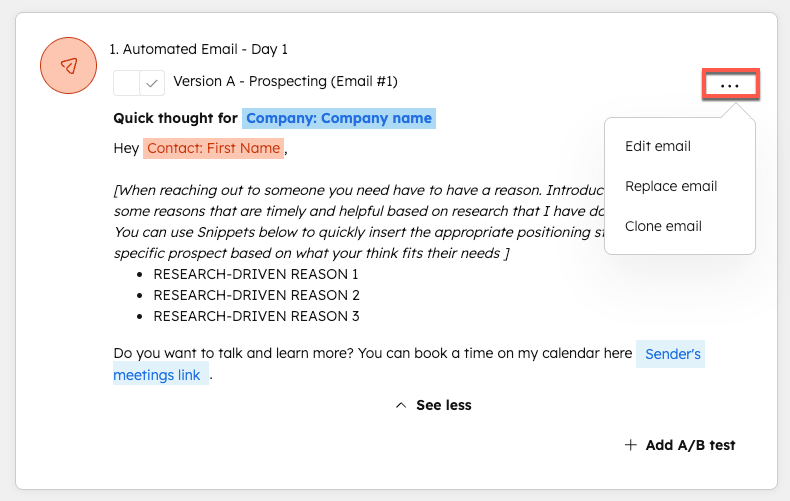
In HubSpot, go to Settings > Integrations > Private Apps and create a new app. Grant it scopes for crm.objects.contacts.read and crm.objects.contacts.write (add companies.read if you want firmographic data). Copy the access token. Gumloop will use this to authenticate its HubSpot node, not OAuth, so store it somewhere you can paste it in the next step.
In Gumloop, open Integrations and add HubSpot. Paste the private app access token. Skip the OAuth connect flow for this workflow. Private app tokens give you cleaner, stable auth for automated flows that run unattended. Once connected, the HubSpot node appears in your node library.
Start a new flow. Add a HubSpot trigger node and set the event to Contact Created. Map the output fields you need: First Name, Last Name, Company Name, Job Title, and the contact's email domain at minimum. These become the inputs to your AI step. If you need more data before the LLM runs, add a second HubSpot node set to Get Contact to pull additional properties using the contact ID from the trigger payload.
Add Gumloop's LLM node after the trigger. Select your model (GPT-4o or Claude 3.5 Sonnet are the practical choices here). Write a prompt that references the mapped fields using Gumloop's variable syntax. A useful prompt for a one-sentence ICP fit summary might read: 'Given that the contact is a [job_title] at [company_name], write a single sentence explaining whether this person is likely a decision-maker for a B2B SaaS procurement conversation. Be direct. No hedging.' The LLM output becomes the value you write back to HubSpot.
Add a HubSpot Update Contact node. Set the Contact ID to the ID from the trigger payload. Map the LLM output field to the exact internal property name you verified before building (for example, ai_icp_summary). Save and activate the flow. Test it by creating a contact manually in HubSpot and watching the flow run in Gumloop's execution log.
The Gotcha You Will Hit (and How to Fix It)
The most common failure point is not the LLM step. It is the variable wiring between nodes. Gumloop passes data between nodes as a structured output object. If you reference a field name that does not exactly match the output schema from the previous node, the node receives an empty string and writes nothing back to HubSpot.
The trap: You name the LLM output “summary” in the node config but the next node references it as “ai_summary” or just “output.” Gumloop does not throw a hard error. The write-back runs, HubSpot accepts the API call, and you have a blank property with no indication of what went wrong. Check the execution log in Gumloop and expand the individual node outputs to verify each field carries a real value before it hits the write-back node.
// Correct: match the output key exactly
// LLM node output schema:
{
  "summary": "Decision-maker at a 200-person SaaS company."
}

// HubSpot Update node mapping:
// Property: ai_icp_summary
// Value: {{nodes.llm_step.summary}}

// Wrong (silently fails):
// Value: {{nodes.llm_step.ai_summary}}
// Value: {{nodes.llm_step.output}}
How Gumloop Compares for This Job
Before you commit the build time, here is my honest read on where Gumloop fits versus the tools you are probably already running.
Which tool should run your HubSpot enrichment flow?
Choose Gumloop if

- You want AI reasoning (LLM prompts) built into the enrichment step natively, not via an HTTP call
- Your team does not have a developer available to manage n8n infrastructure
- You are enriching from a single data source or using the LLM itself as the enrichment layer
Choose Clay if

- You need waterfall enrichment across multiple providers (Apollo, Clearbit, LinkedIn, etc.) in one flow
- Your enrichment logic depends on data accuracy more than AI-generated summaries
- You are already running Clay tables and just need HubSpot sync, not a full rebuild
Choose n8n if

- You have a developer or a technical RevOps operator who can maintain self-hosted infrastructure
- You need complex branching logic, custom code nodes, or integrations not covered by Gumloop
- Cost at scale matters and you want to self-host to avoid per-execution pricing
Choose Make if

- Your team is already in the Make ecosystem and has existing scenarios you want to extend
- You need a broader app library than Gumloop currently offers
- You prefer Make's scenario-based pricing model over Gumloop's execution model
If you are already running Make integrations for your GTM team, the question is not whether to switch entirely. It is whether the AI-native layer in Gumloop is worth running in parallel for specific enrichment flows. My read is yes, for any workflow where the output is an LLM-generated field rather than a raw data lookup. Make is excellent at data plumbing. Gumloop is better when the “enrichment” is actually a judgment call you want the LLM to make.
For teams comparing this to the n8n HubSpot sync pattern, the trade-off is flexibility versus friction. n8n gives you more control at the cost of significantly more configuration.
One Canvas Is Enough
The Gumloop HubSpot integration is not trying to replace every tool in your stack. What it does well is collapse the three-tool pattern (data trigger, AI call, CRM write-back) into a single canvas that a non-developer can own and debug. For GTM operators tired of managing auth tokens across four different tools just to get a one-sentence summary onto a contact record, that is a real improvement.
Build the flow. Verify the execution log on the first three runs. Then hand it to whoever owns HubSpot operations. Per Gumloop’s integration docs, the HubSpot node handles auth state automatically after initial setup, so there is no token refresh to babysit. That alone is worth the switch for a lot of teams running this kind of flow today in Make.
Sources
Frequently asked questions
Does Gumloop have a native HubSpot integration?
Yes. Gumloop includes a native HubSpot node that can read, create, and update contacts and companies without any middleware like Zapier or n8n.
Can Gumloop replace Clay for contact enrichment?
Gumloop handles AI-powered enrichment flows well, but it does not offer Clay's waterfall enrichment across multiple data providers. It is better used as a workflow layer that processes data from a single enrichment source.
Do I need to know how to code to build a Gumloop HubSpot workflow?
No. Gumloop is a visual no-code canvas. You connect nodes by dragging and wiring them, and the AI step uses a prompt you write in plain language.
How is Gumloop different from n8n or Make for this use case?
Gumloop builds AI reasoning directly into the node graph, so you can run an LLM step without a separate API call or code block. n8n and Make require you to wire an OpenAI or Anthropic HTTP node yourself.
What HubSpot plan do I need for this workflow?
The HubSpot API access required for Gumloop's node is available on all paid HubSpot hubs. Starter tier works for basic contact reads and writes.